Timeline and Calendar
This explains how to use the Timeline to view notes, tasks, and events, and how to sync it with your Google Calendar.
Written By Saner.AI
Last updated 10 months ago
You can open the Timeline/Calendar feature via the Timeline button on the left sidebar
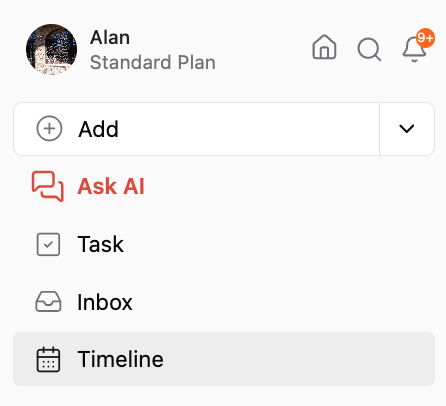
Timeline Views
Saner’s Timeline has two views:
Daily Notes
Calendar
You can switch between them anytime.
Daily Notes
Daily Notes is where your day-to-day thinking and work come together.
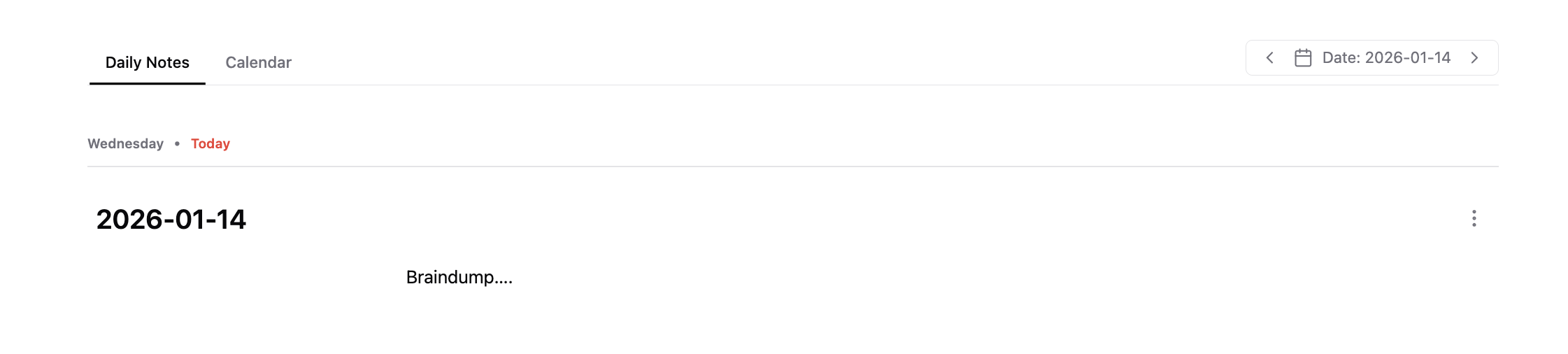
Saner automatically creates a Daily Note for each day. You can use it to:
Jot down quick thoughts
Take meeting notes
Capture reminders or ideas as they come up
Everything you write is automatically grouped by date, so you don’t have to organize things manually.
Daily Notes help you:
Track what you’ve worked on
Reflect on what you were thinking
Review progress across days, weeks, or months
Calendar View
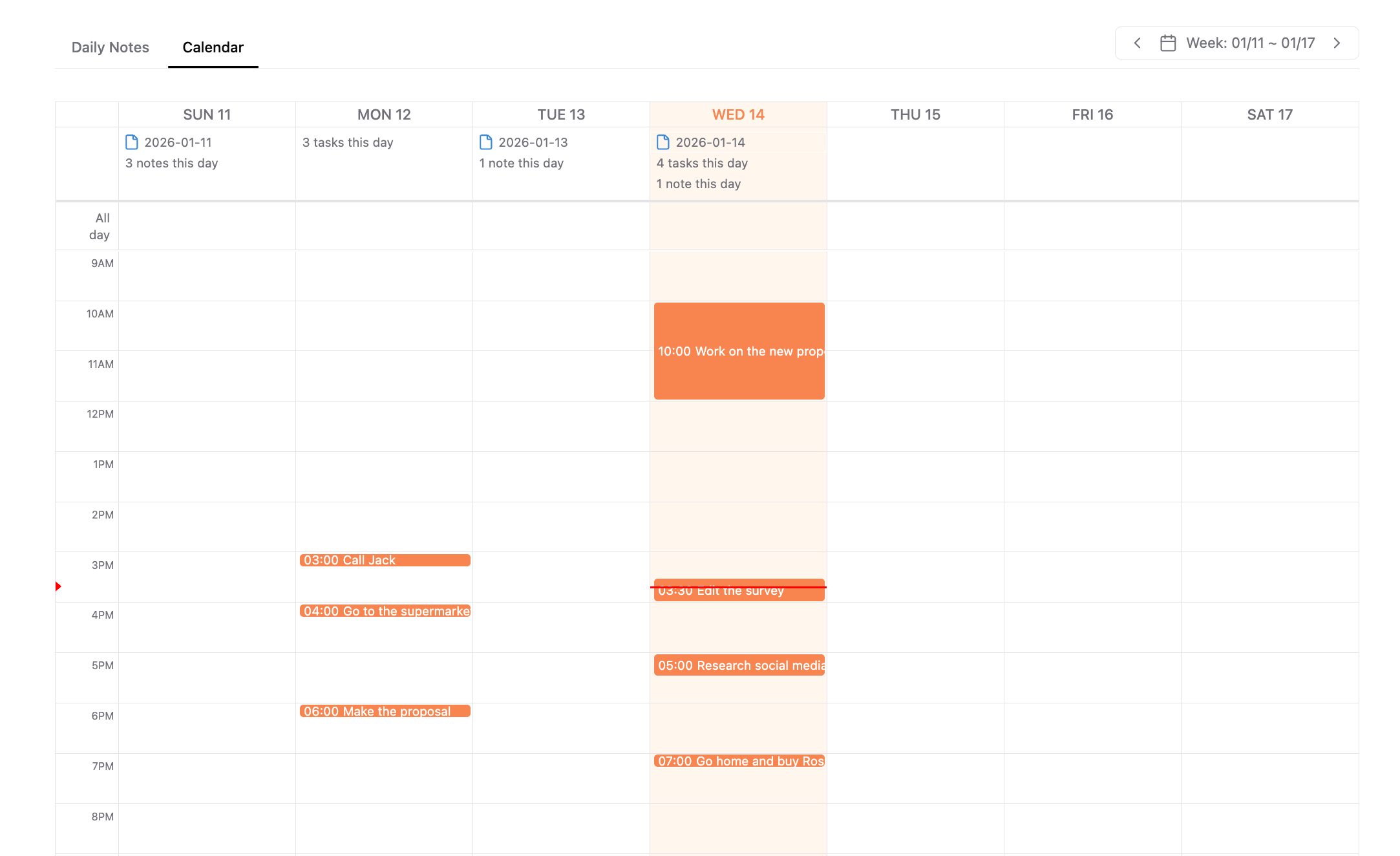
The Calendar view shows:
Events synced from Google Calendar
Tasks created inside Saner
This gives you a clear, visual overview of your schedule alongside your notes and work.
What You Can Do in the Timeline
1. Timeline & Daily Notes
Jump between Daily Notes to review or continue journaling
Capture ideas quickly without worrying about where they belong
2. Calendar View
Switch between Timeline and Calendar using the toggle in the top-left
Choose Day, Week, or Month views depending on how detailed you want your view to be
Get a clearer overview when planning ahead or reviewing your schedule
3. Two-Way Google Calendar Sync
Automatically import events and tasks from Google Calendar
Any changes you make in Saner sync back to Google
Create, edit, or manage events and tasks directly from the Timeline
Keep personal plans and work meetings in sync without duplicating effort
Was this helpful?
Still need help? Share an idea