Search feature
This explains how to find information using keyword search, natural language queries, and advanced filters for precise results.
Written By Saner.AI
Last updated 10 months ago
Saner.ai’s Search System helps you quickly find notes, tasks, and documents - even when you don’t remember exact words.
You can open “Search” by:
Clicking the search icon in the top-right corner near your profile picture, or
Opening the Search page directly at https://app.saner.ai/intent/search
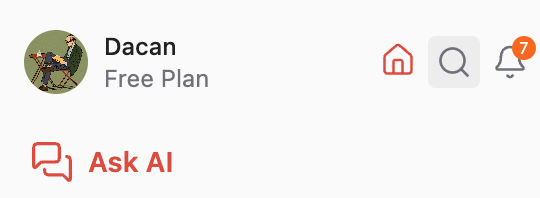
Search supports both exact keywords and natural language, so you can search the way you think.
How search works in Saner.AI
Saner uses two types of search: full-text and semantic, depending on how you phrase your query.
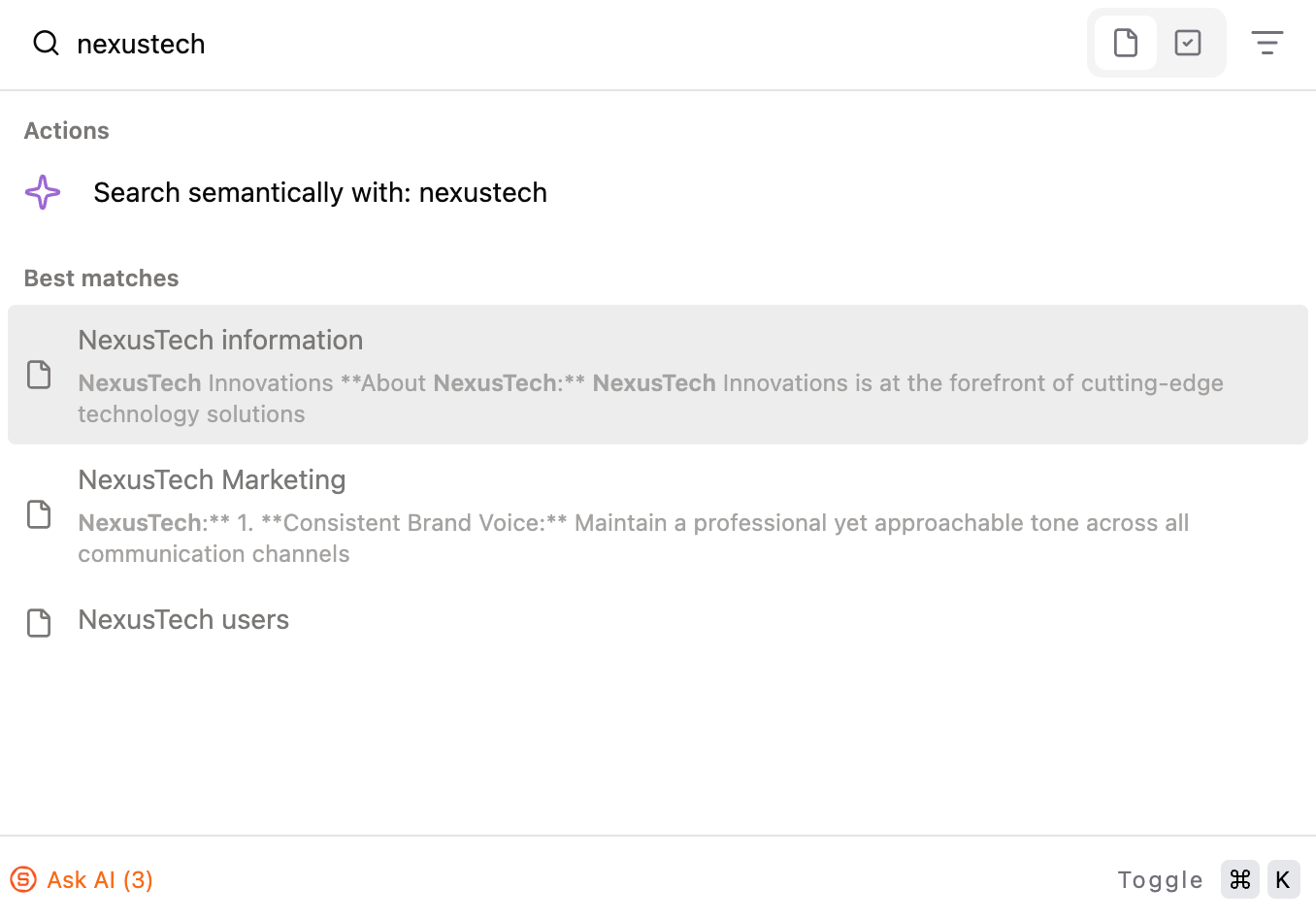
1. Full-text search (exact keywords)
Full-text search looks for exact word matches across:
Note titles
Note content
Note metadata (such as tags)
Use this when you:
Remember specific words, names, or phrases
Want precise, literal matches
Example:
Searching for OKRs Q2 will return notes that contain those exact terms.
2. Semantic (AI) search (by meaning)
Semantic search understands meaning, not just exact words.
You can:
Describe what you’re looking for
Ask a question in natural language
Search by idea, topic, or intent
Saner will return relevant notes even if they don’t contain the same wording.
Example:
“Notes about our pricing discussion last month”
“Ideas related to user onboarding problems”
This is useful when:
You don’t remember exact wording
You want to explore how notes relate to each other
Refine your search results
You can narrow results using filters and sorting options in the “Search” feature
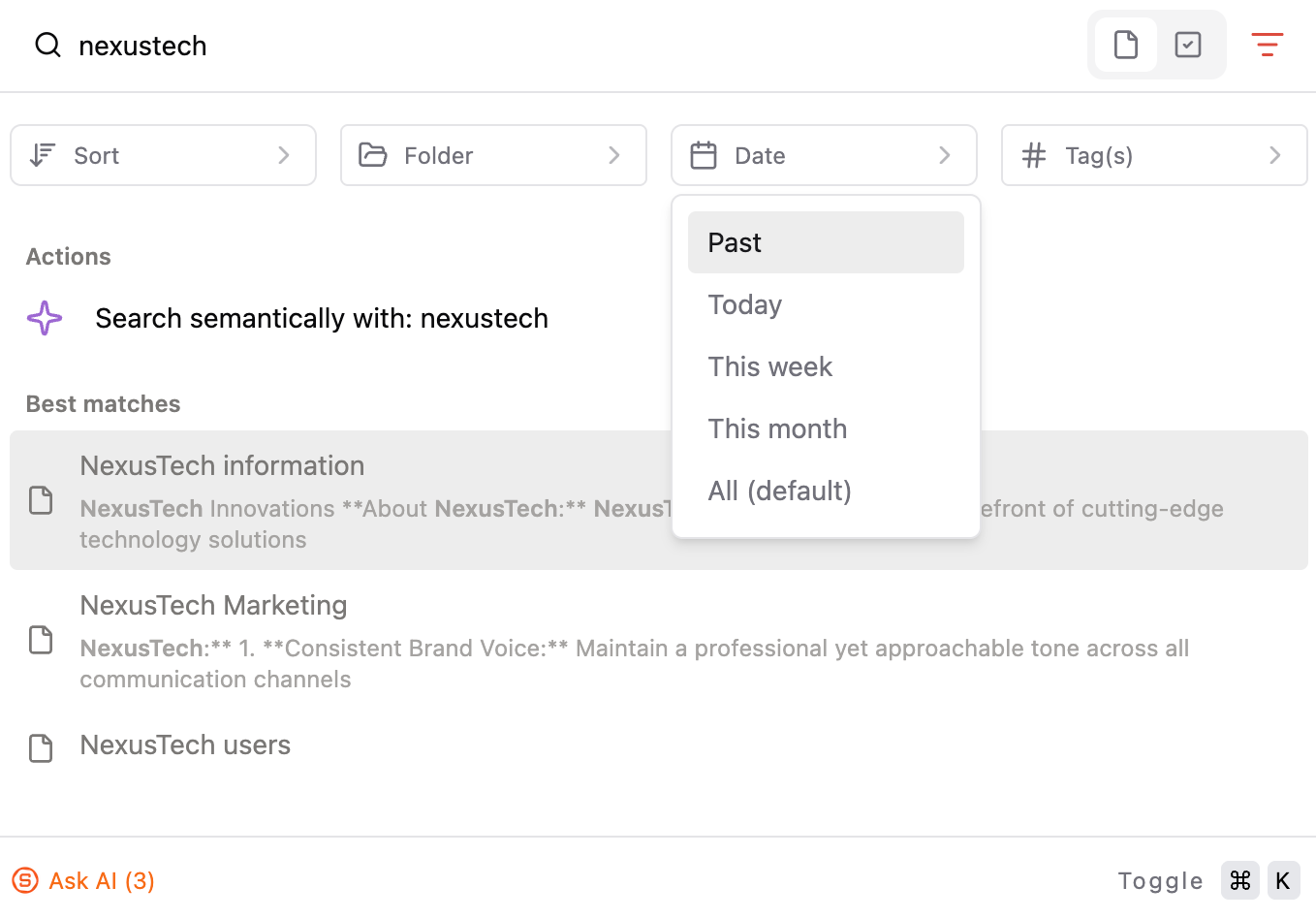
Filters
Folder – limit results to a specific folder
Tags – show only notes with selected tags
Tasks – search for tasks only
Date – filter by creation date or time range
Sorting options
Best matches – ranked by relevance
Newest first / Oldest first – based on creation or last edit date
Recent searches
Saner automatically saves your recent searches, so you can quickly return to queries you use often without retyping them.
Was this helpful?
Still need help? Share an idea