The “Ask AI” Feature
This is for users to understand how the AI chat on Saner.AI works
Written By Saner.AI
Last updated 9 months ago
The Ask AI feature in Saner.AI lets you chat with AI to think, plan, and take action using your notes, tasks, and other connected content.
You can ask questions in natural language, attach context, and create notes, to-dos
How to Open “Ask AI”
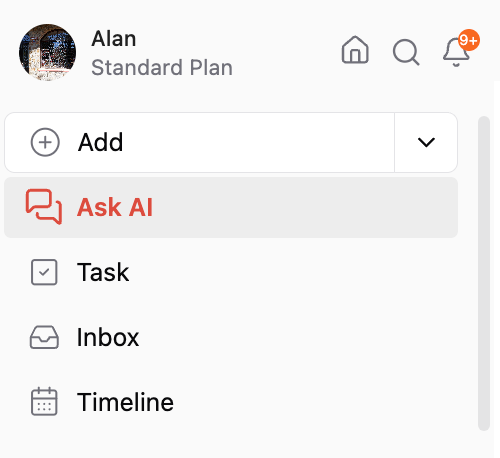
Go to the top-left corner of the app
Click Ask AI
This opens the Ask AI chat screen, where you’ll see the features described below.
Main Components of the Ask AI Screen
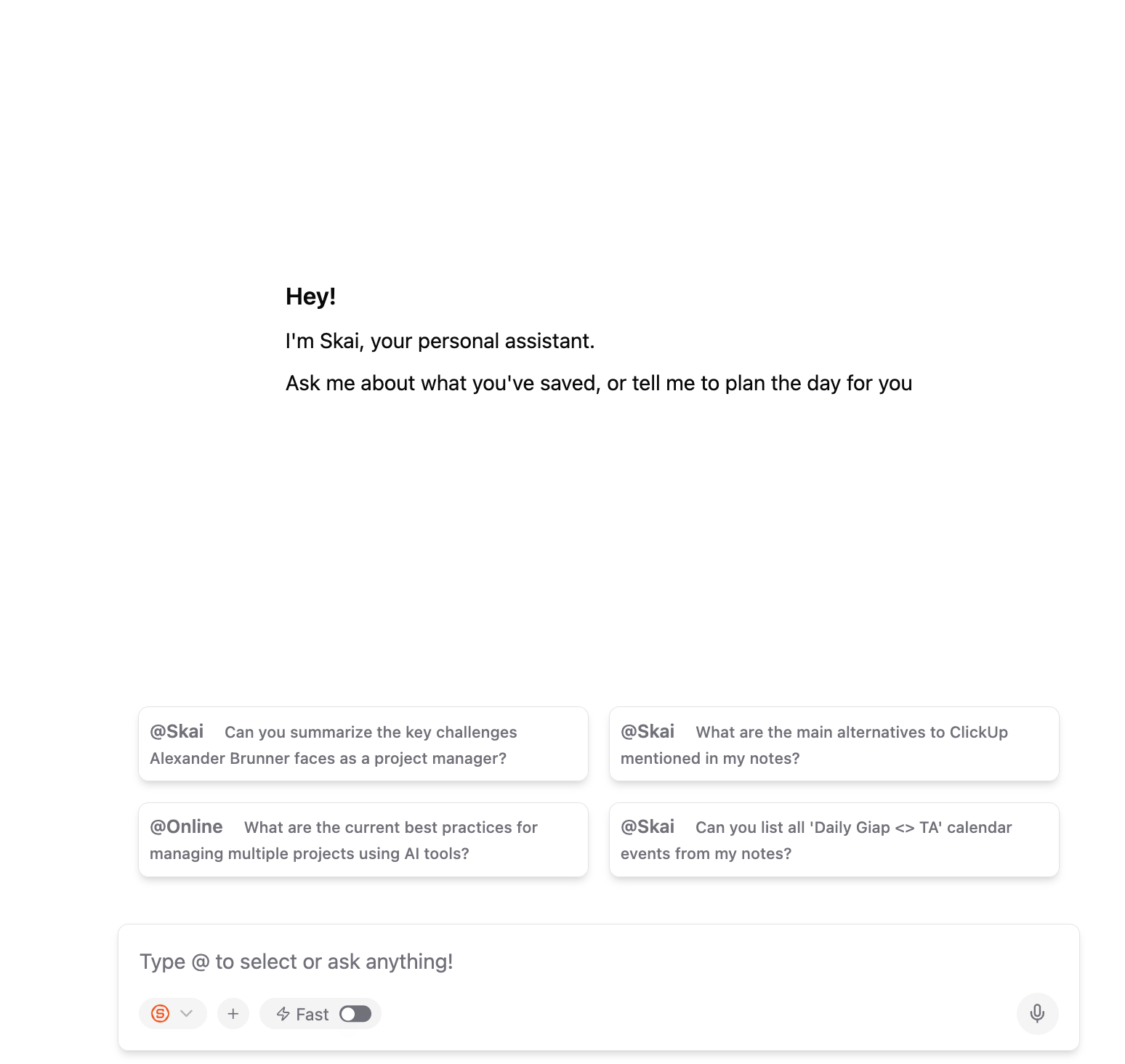
1. AI Suggested Prompts
4 boxes appear above the chat box
It shows AI-suggested prompts based on your notes, tasks, and recent activity
These prompts aim to help you move faster
2. AI Chat Box
This is where you type your questions or prompts
The AI responds in natural language
You can:
Ask questions
Manage tasks
Generate content
You can also paste screenshots/pictures/images directly into the chat to ask questions about them.
3. Voice-to-Text
Located at the bottom-right of the chat box
Click the microphone icon to speak instead of typing
Your speech is automatically transcribed into text
This helps save time and reduce typing effort.
4. AI Model Selection
Located at the bottom-left of the chat box
Click the model selector button (S icon) to switch AI models
Available models may include:
Skai
Internet Search
ChatGPT
Claude…
5. Context Selection for AI
Next to the model selector, click the plus (+) button
Then click Select to open the file selection screen
From here, you can choose specific sources for the AI to use, such as:
Individual notes
Emails
Folders
This ensures the AI answers based only on the context you select.
You can also attach images using the attachment option in this screen.
6. Thinking Mode
By default, Ask AI uses Deep Thinking mode for more accurate and thoughtful responses
If you want faster answers, toggle Fast mode at the bottom of the chat box
Interacting With AI Responses
Each AI response includes several actions:
Save to Note
Save the response as a new note (button at the bottom-right of the response)Copy
Copy the response text for use elsewhere (bottom-right)Like / Dislike
Give feedback on the response quality (buttons at the bottom-left)Regenerate
Regerenate the answer with the current or a different model (bottom-left)
User Control
Skai may suggest edits to notes or tasks, but changes are not applied automatically
You must click Apply on each suggestion to confirm it
You always stay in full control of:
What gets saved
What gets modified
What gets discarded
Nothing changes without your approval.
Was this helpful?
Still need help? Share an idea