Tag system
This explains how to use both manual and AI-suggested tags to efficiently organize your notes and improve discoverability.
Written By Saner.AI
Last updated 9 months ago
Tags help you organize notes in a flexible, lightweight way - so you can find what you need later without overthinking structure.
In Saner.ai, you can:
Add tags manually when you want full control
Use AI-suggested tags to save time
You can mix both approaches depending on how you work.
How to Open Tags for a Note
To view or edit tags on a note:
Open any note
Hover over the note title
Click the arrow icon on the right side of the title
Select Tags from the dropdown (located directly below the note title)
This opens the tag editor for that note.
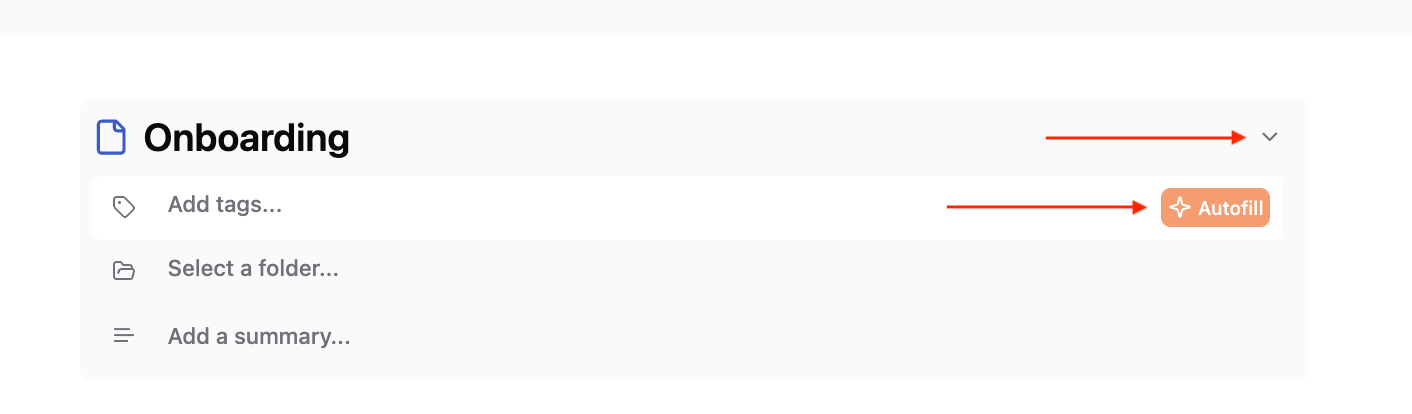
Manual Tagging
Manual tagging lets you decide exactly how your notes are organized.
You can add, edit, or remove tags while creating or editing a note. This is useful when your tags reflect your own way of thinking, such as:
Projects
Topics or domains
Personal systems or workflows
Manual tags are ideal when you already know how you want to classify a note.
Automatic Tagging (AI Tag Suggestions)
Saner.ai can also suggest tags automatically.
When auto-tagging is enabled, the AI reviews the content of your note and proposes relevant tags. You can then:
Accept the suggested tags
Edit them
Remove them if they’re not useful
Auto-tagging helps you organize notes faster and can surface patterns or themes you may not notice manually.
Managing Tags
All tags are stored in one place: the Tags section of the Knowledge System.
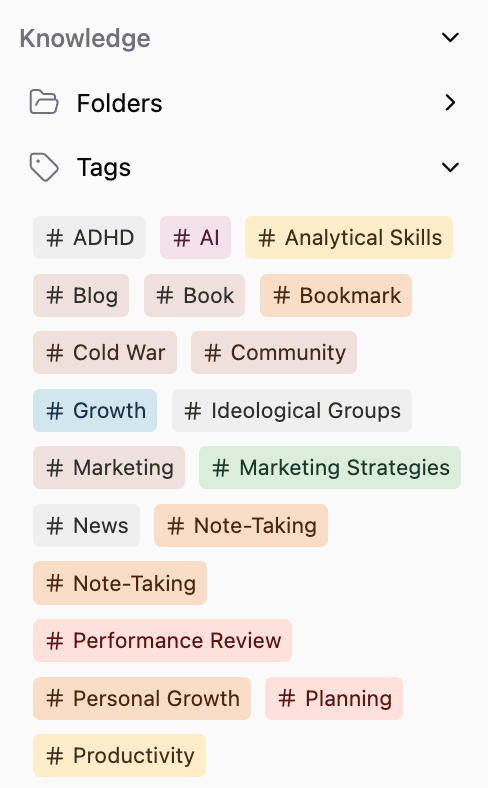
Tags let you organize and retrieve notes across different folders.
In the Tags section, you can:
See a complete list of all tags used across your notes
Click a tag or many tags to instantly view every note associated with it
Delete tags by hovering over them and then clicking the trash bin icon on the Tags bar
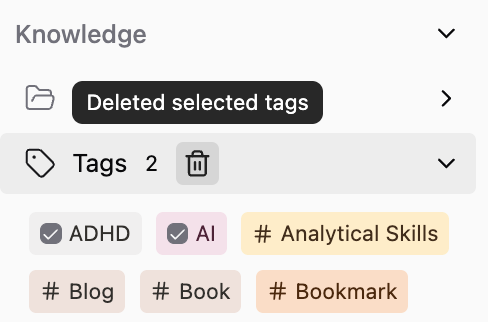
Tags are useful when information doesn’t fit neatly into a single folder or when you want to group notes by theme, status, or context.
Was this helpful?
Still need help? Share an idea