Note Views
This explains the different ways you can view your notes, such as in a full-screen or side-panel view, to suit your workflow.
Written By Saner.AI
Last updated 10 months ago
Saner lets you open the same note in different viewing modes, depending on how you want to use it - focused writing, quick reference, or multitasking.
You can switch between views at any time without duplicating or moving your note.
How to change a note’s view
Open any note
Click the three-dot menu in the top-right corner
Select the view you want
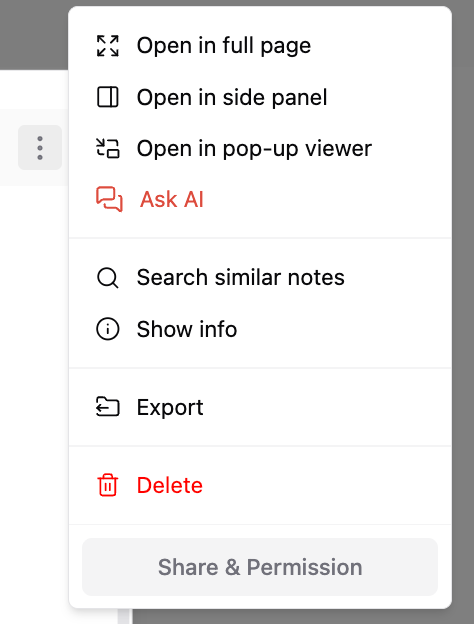
Saner currently supports three note viewing modes: Full-page, side panel, and Pop-up
Full-page mode
Open a note in full screen for focused writing or deep review.
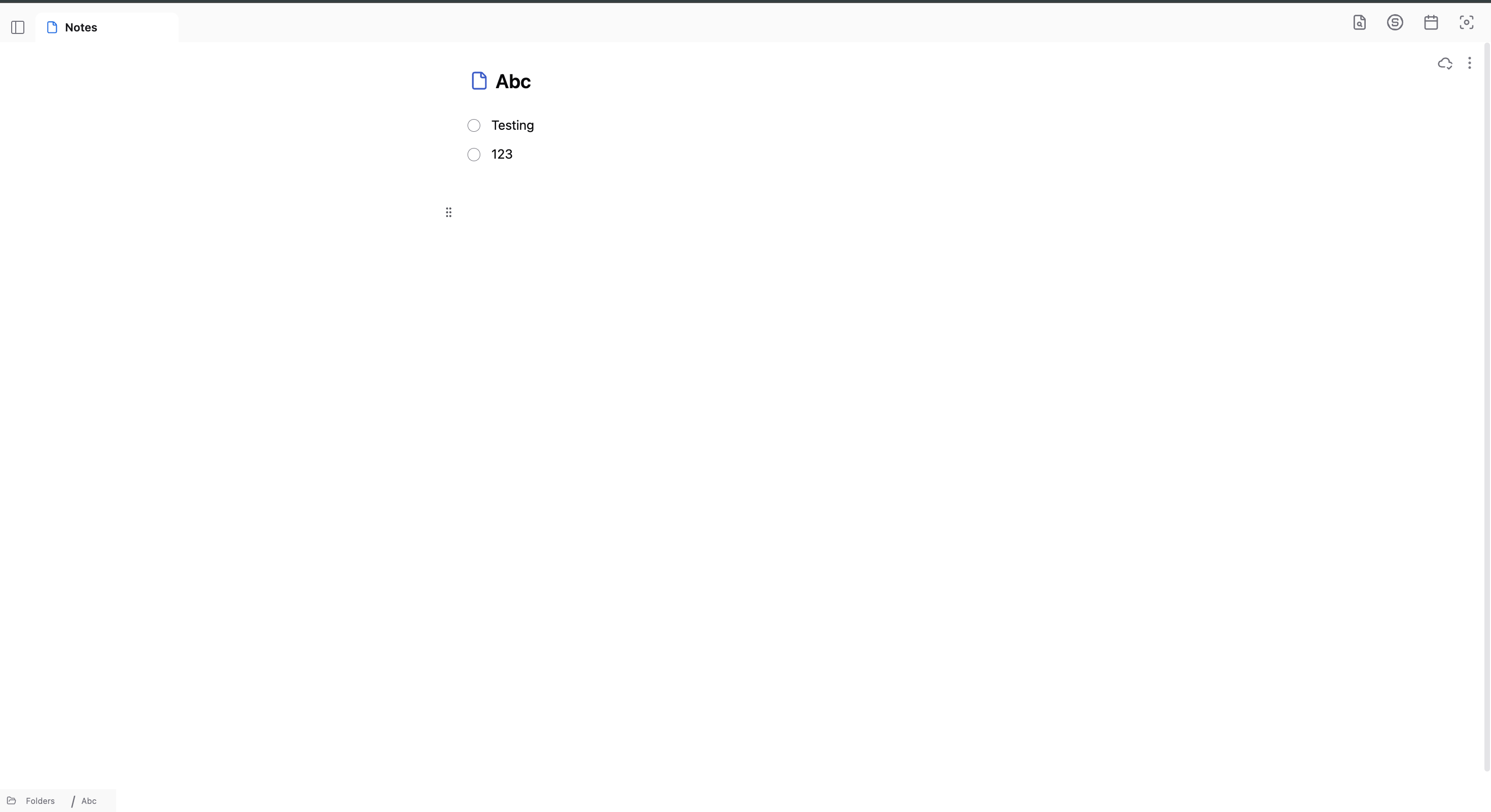
Use this mode when you want to:
Write or edit long notes
Review complex ideas without distractions
Fully focus on a single note
This mode hides surrounding UI so your attention stays on the content.
Side panel view
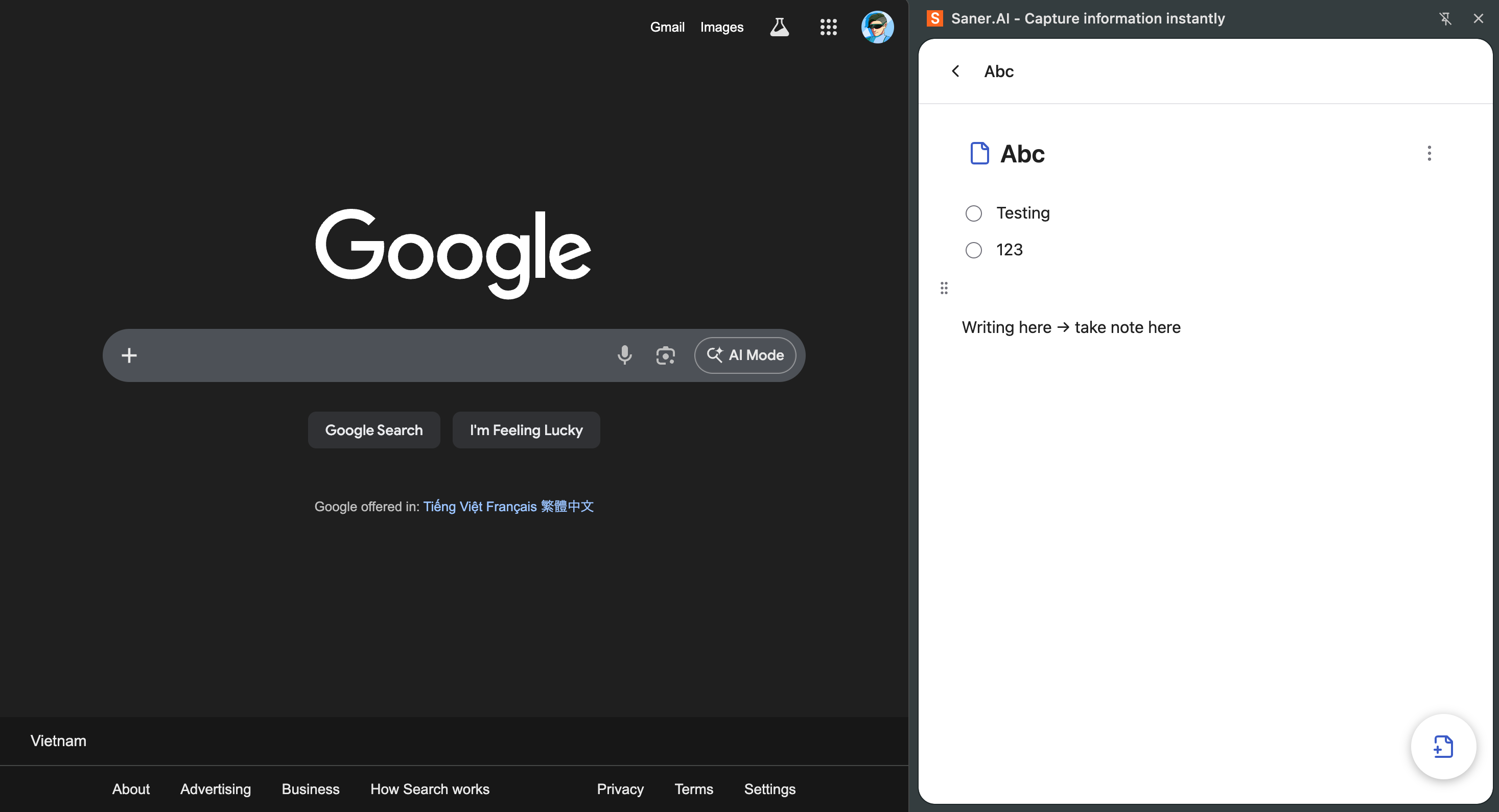
Open a note in a compact side panel while continuing to navigate other parts of Saner - or other websites.
This is especially useful for:
Referencing notes while working on tasks
Research and reading while keeping notes visible
Capturing ideas without switching tabs
If you’re using the Saner Chrome extension, the side panel can stay open while you browse other websites.
Pop-up viewer
Open a note in a floating window that stays on top of other apps.
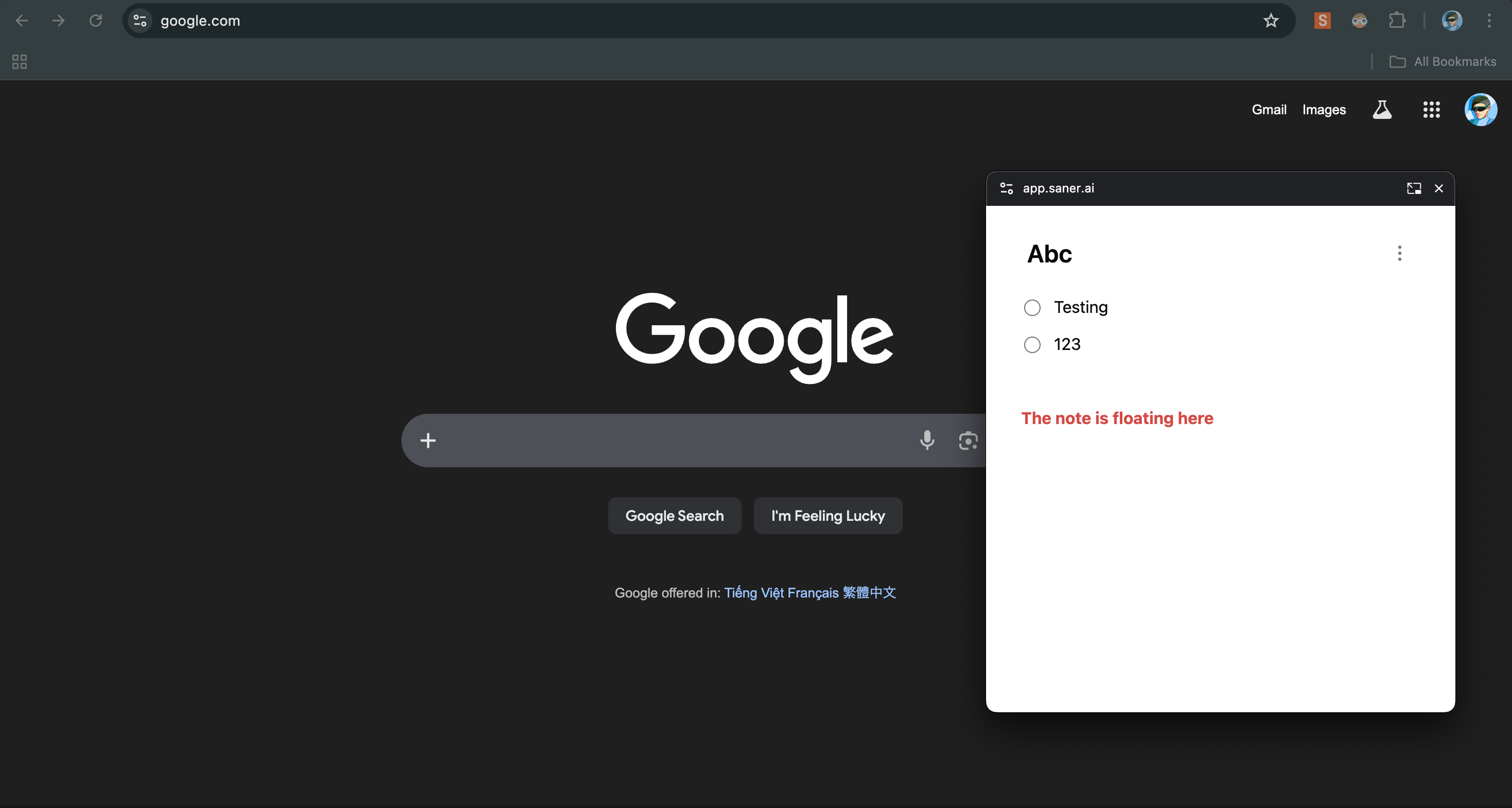
Best for situations where you:
Switch between multiple apps
Need quick access to a specific note
Want to keep context visible without reopening the editor
This works similarly to picture-in-picture mode for videos, but for notes.
Switch freely between views
You can move between the normal editor, full-page mode, side panel, and pop-up viewer at any time.
All views show the same note - just optimized for different workflows - so you can choose the setup that matches how you’re thinking and working in the moment.
Was this helpful?
Still need help? Share an idea