Import Overview
This explains how to bring content from various file formats and external platforms into Saner.AI
Written By Saner.AI
Last updated 9 months ago
The Import feature allows you to easily bring content from multiple sources into your workspace. We support various file formats (Text, Markdown, Word, PDF, HTML, Image, Audio) and external platforms like Notion, Evernote, Apple Notes, and Obsidian. This ensures you can consolidate your notes, tasks, and documents into one unified workspace
To start an import, you can use this Import feature or click the "Add" button in the left sidebar and select "Import".
How the import process works
Saner.ai guides you through a short review flow to make sure everything is imported correctly:
You choose a destination folder before importing
Files are validated to ensure they’re supported and under the 10 MB size limit
You can add more files or change the folder during review
A progress bar shows import status in real time
A final summary confirms which files were imported successfully and which failed
How to import your content into Saner.AI
Step 1: Initiate the Import Process
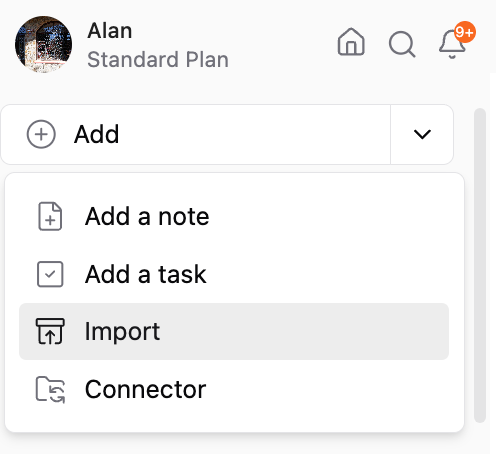
Navigate to the "Add" button in the left sidebar and select "Import". You will be prompted to choose a destination folder for your content.
Then, select your import source: either from other apps like Notion or by uploading files directly from your computer.
Step 2: Review Your Import
You will see a preview of the files you have selected. Here you can change the destination folder or add more files.
The system will also validate your files, confirming they are under the 10MB size limit and in a supported format.
Step 3: Confirm and Start the Import
Once you are satisfied with your selection, click the "Import" button to begin. A progress bar will appear to track the status.
Step 4: Finalize the Import
After completion, a results pop-up will show how many files were imported successfully and note any failures. Click "Done" to finish the process.
Your imported content will now be available in the designated folder. If you encounter issues, you can always use the "Back" button to make adjustments.
Was this helpful?
Still need help? Share an idea