Connect Gmails
This guide explains how to set up the Gmail connector, including how to use filters and auto-sync to manage your emails as notes.
Written By Saner.AI
Last updated 9 months ago
How to connect Gmails
Open the connector via the drop-down arrow in the Add button on the top left corner of the app
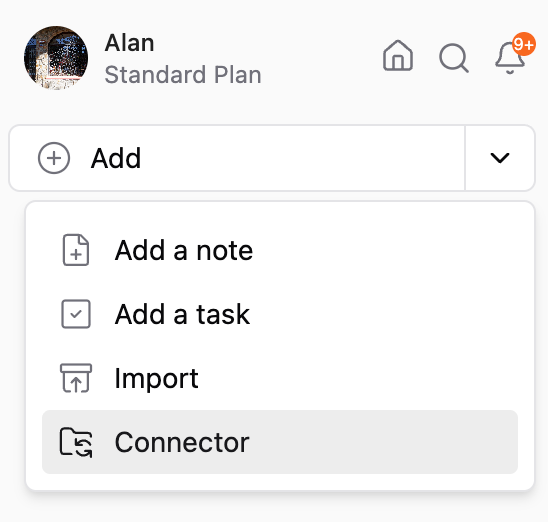
Select Gmail
Click Add Source
After selecting your Google account, you can control exactly which emails are synced using filters:
Choose the filters you want (labels, categories, date range, etc.).
Turn Auto-sync incoming emails ON if you want new emails to sync automatically as they arrive.
Save your settings.
Gmail Connector Field Details
Each field below controls what gets synced and how emails are grouped into notes.
Auto Sync & Date Range
Auto Sync
When Auto Sync is ON, Saner.ai checks Gmail every 30 minutes.
New emails are automatically fetched and added to your notes.
How Date Range Behaves
Managing a Synced Gmail Connector
For each Gmail connector you’ve set up, when you navigate to its Connector settings, you can do many actions with it:
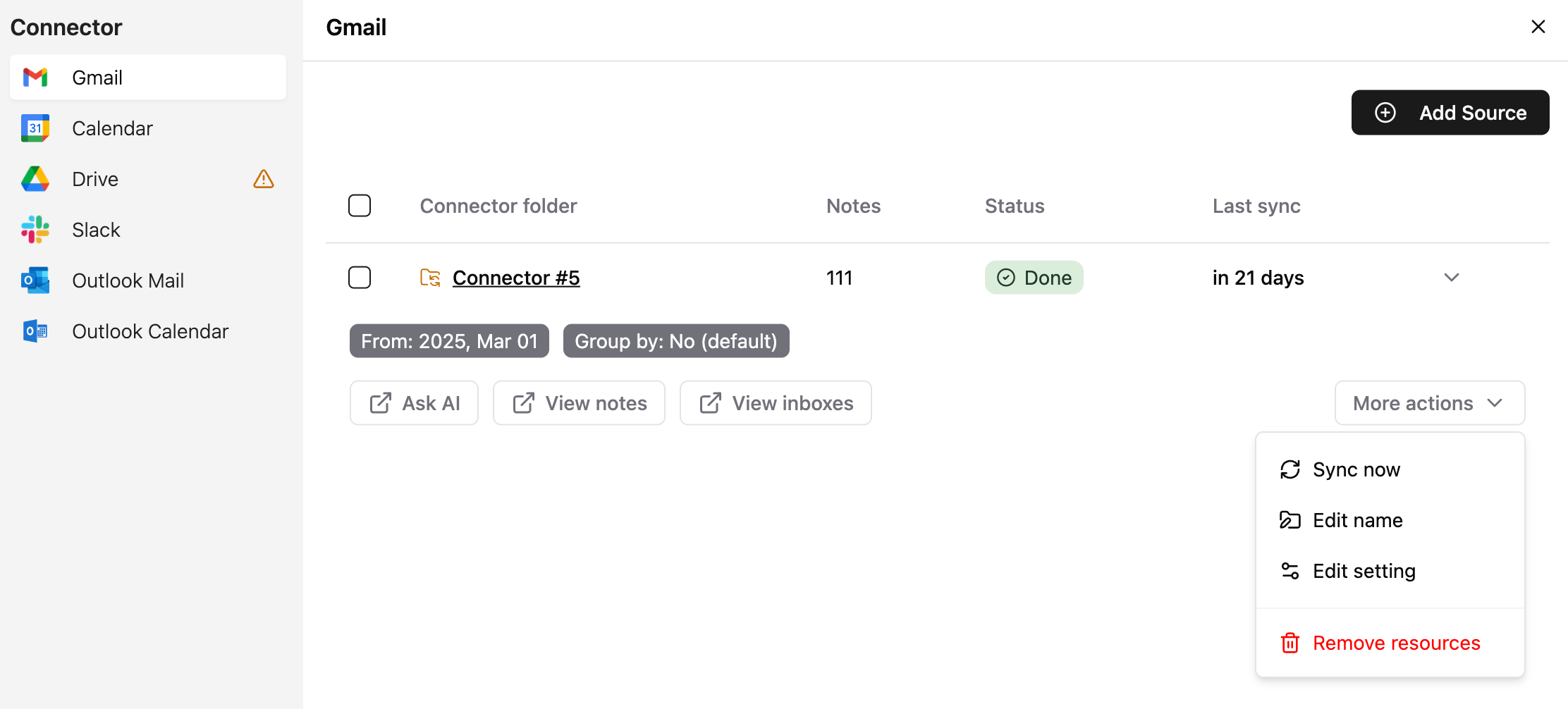
Available actions
Sync now – Manually pull the latest updates
Edit name – Rename the connector for clarity
Edit settings – Change filters or grouping rules
Remove source – Stop syncing and disconnect the source
Navigation & AI actions
Click the connector name to open the generated note
Click the source name to open the folder containing synced emails
Ask AI questions about your synced emails
Was this helpful?
Still need help? Share an idea