How The Inbox Works
This explains the actions you can take on items in your Inbox, including applying AI suggestions, snoozing items for later, and marking them as done
Written By Saner.AI
Last updated 9 months ago
The Inbox helps you quickly process new content using AI suggestions, so nothing important slips through while you stay focused.
When an item appears in your Inbox, AI reviews it and suggests only what’s useful - not everything by default.
What AI Suggests
For each Inbox item, AI may suggest one or both of the following:
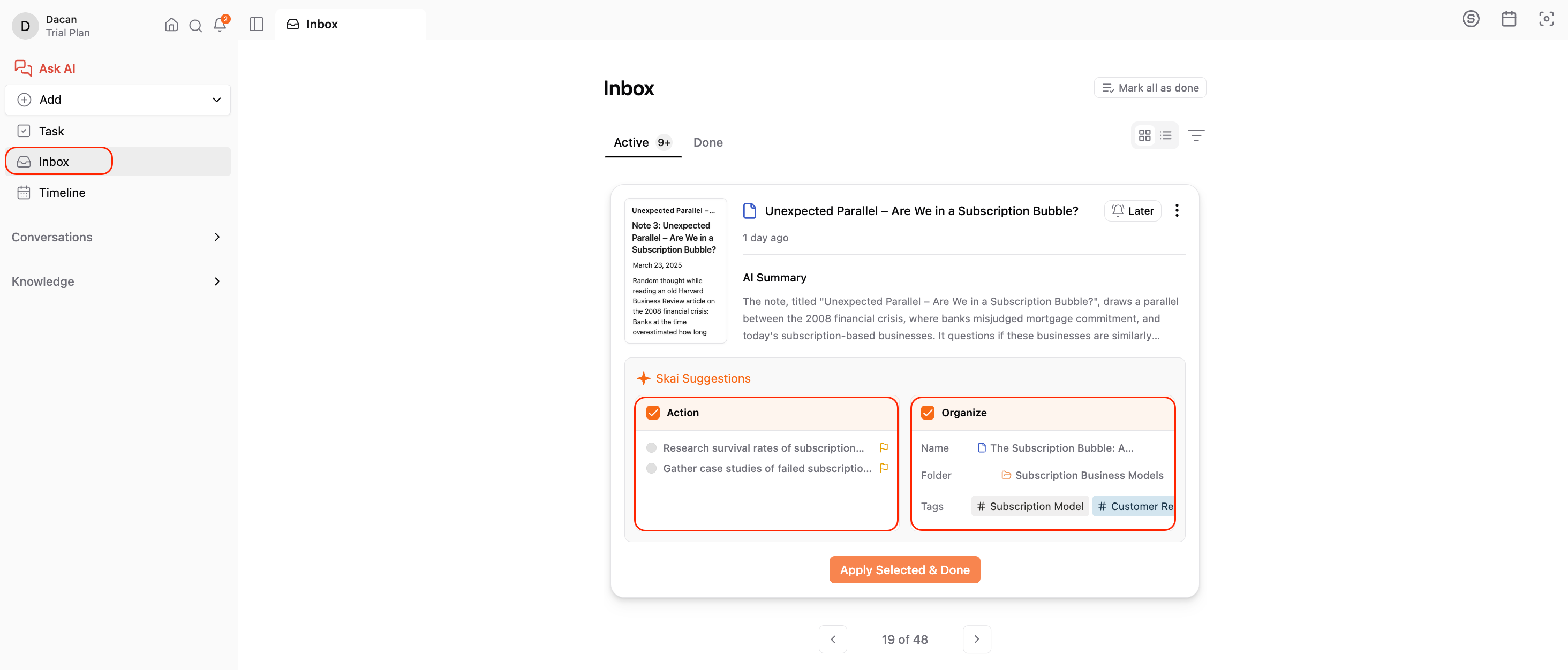
1. Action
Suggested action items based on the content (for example, tasks or follow-ups you may want to do from your emails).
→ This is where you get the automatically extracted action items from your notes/emails
2. Organization
Suggested ways to organize the content, such as:
A clearer or more descriptive title
Relevant tags
A suitable folder or location
If AI determines that only one of these is needed - or that no changes are necessary - it will only show the relevant suggestions. This keeps recommendations focused and intentional, rather than automatic.
Edit or Ignore AI Suggestions
You stay fully in control.
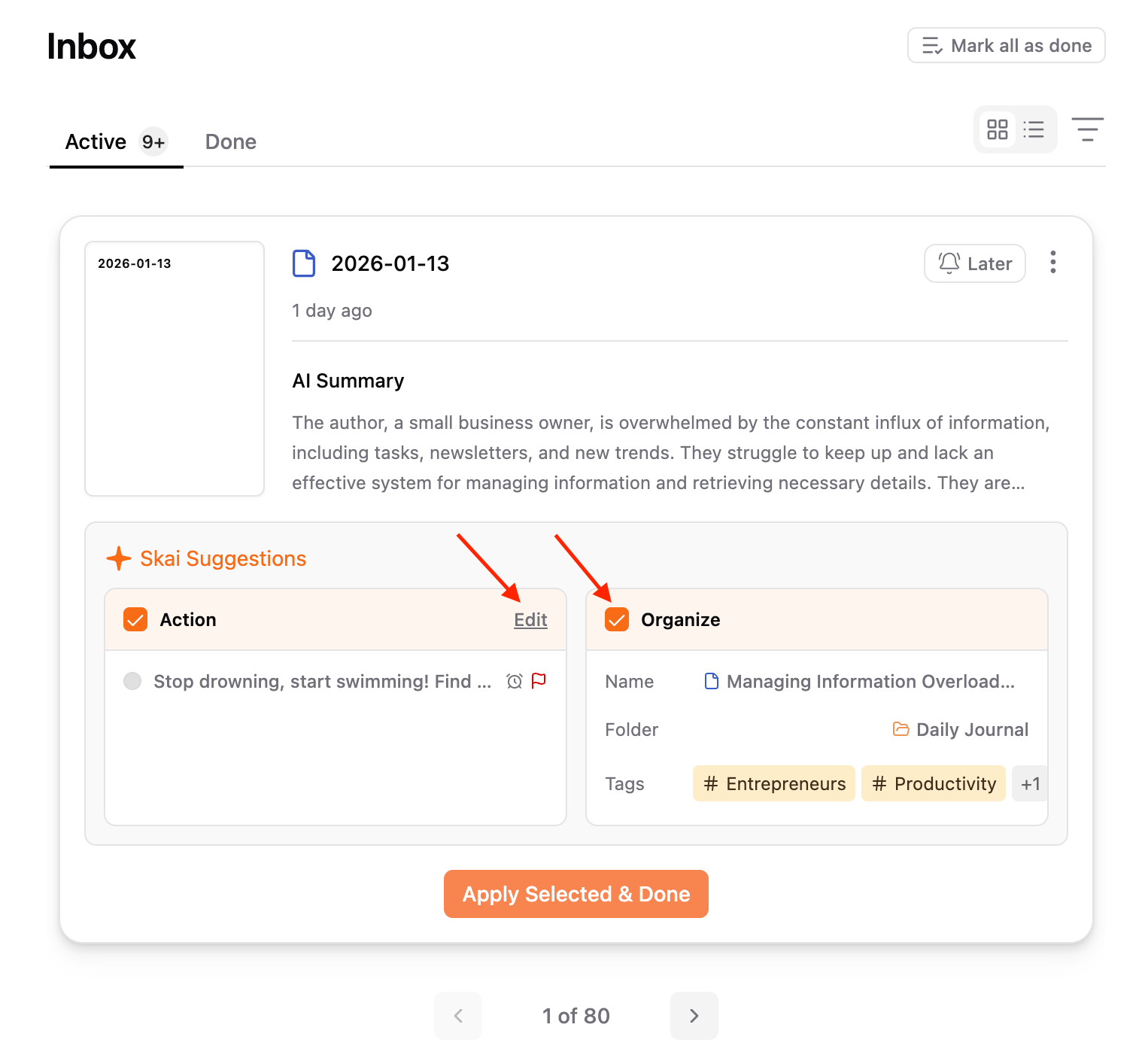
To edit a suggestion, hover over Action or Organization, click Edit, and make changes.
To ignore a suggestion, simply uncheck the checkbox next to Action or Organization.
Nothing is applied unless you choose to apply it.
Conclusion Action for Inbox Items
After you’ve edit/discard the AI suggestion, you can click “Apply and Done”
This applies the AI suggestions you’ve edited (such as renaming, tagging, or moving the item) and marks the item as processed.
Use “Later” to Defer Items
If you’re not ready to handle an item, use Later. (the bell button on the top right corner of each item)
This temporarily defers the item and sets a time for it to reappear in your Inbox. It helps you stay focused on what matters now without forgetting about deferred items.
Inbox Tabs
Your Inbox is organized into two tabs:
Active: Items that are new or still awaiting your attention.
Done": Items you’ve already processed.
Additional Options
Each Inbox item also includes additional options in the 3 dots button on the top right corner. This provides you with 3 actions:
Ask AI – Get deeper help or clarification about the content
Feedback – Share feedback to help improve AI suggestions
Archive – Remove the item from your Inbox without processing it
Was this helpful?
Still need help? Share an idea