Connect Outlook Calendar
This guide explains how to set up a one-way sync between Saner.AI and Outlook Calendar to import your events to Saner.AI
Written By Saner.AI
Last updated 9 months ago
The Outlook Calendar Connector lets you sync calendar events into Saner.ai so you can review, analyze, and ask AI questions about your schedule in one place.
How to Connect Outlook Calendar
Open Saner.AI
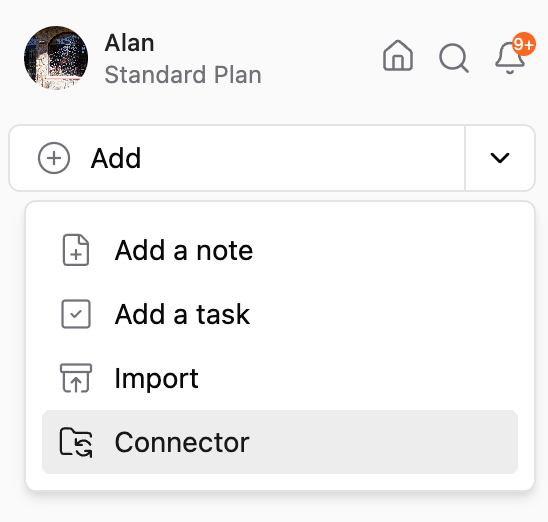
Click the drop-down arrow in the Add button(top-left corner of the app)
Select Outlook Calendar
Click Add Source
After selecting your Outlook account, you can configure filters to decide which events are synced into Saner.ai.
If Auto Sync is enabled, Saner.ai will keep your calendar up to date automatically as events are added or changed in Outlook.
Event Filters & Settings
Use the settings below to control exactly what gets synced.
Grouping behavior examples
Per event → One note per calendar event
Daily → All events for a day in one note
Weekly → All events for a week in one note
Monthly → All events for a month in one note
Auto Sync vs Date Range
Auto Sync and Date Range work together to control ongoing updates.
Managing Your Outlook Connector
After your calendar is synced, you can manage it in the connector settings at any time:
Sync now – Manually fetch the latest calendar updates
Edit name – Rename the connector
Edit settings – Change filters, grouping, or sync preferences
Remove source – Disconnect your Outlook calendar from Saner.ai
Viewing & Using Your Synced Events
Click the connector name to view all synced calendar notes
Click “Ask AI” to chat with your AI assistant about your events
Examples:
“Summarize my meetings this week”
“List all client meetings from last quarter”
Was this helpful?
Still need help? Share an idea