Sync Saner.AI tasks to Google Calendar
This guide explains how to sync Saner.AI tasks to Google Calendar
Written By Saner.AI
Last updated 9 months ago
You can:
Import events from Google Calendar into Saner.AI
Push tasks from Saner.AI into Google Calendar
Keep everything automatically in sync
Here’s a tutorial video (starts at 3:35)
What You Can Sync
When connecting Google Calendar, you’ll choose one sync direction per connector:
Google Calendar → Saner.AI (Events)
Import calendar events into Saner.AI (they will show up in the Saner.AI calendar)Saner.AI → Google Calendar (Tasks)
Turn tasks from Saner.AI into calendar events in Google Calendar.
You can create multiple connectors if you need have many Google accounts
How to Connect Google Calendar
Open Saner.AI
Click the drop-down arrow in the Add button(top-left corner of the app)
Select Google Calendar
Choose how you want your data to sync
Click Add Source
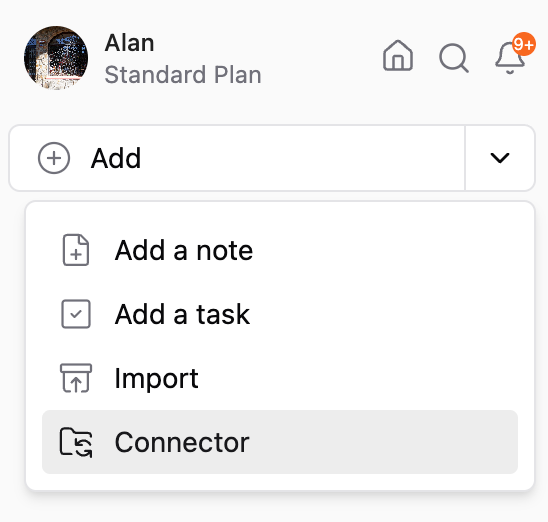
How to sync Saner.AI tasks to Google Calendar
Use this option to send tasks from Saner.AI into Google Calendar.
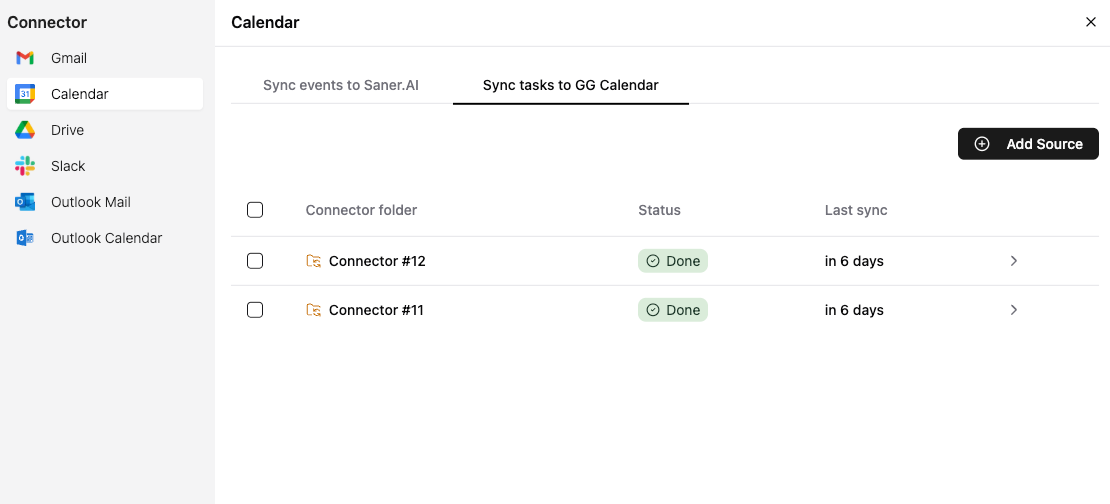
Sync Settings
⚠️ Warning: “Clean up outdated synced tasks” will delete calendar events if tasks lose their due date or status match.
After Tasks Are Synced
For each task connector, you can:
Sync now – push updates immediately
Edit name – rename the connector in Saner.AI
Edit settings – change filters or rules
Remove source – stop syncing tasks
You can also click:
The connector name → view the corresponding event in Google Calendar
Was this helpful?
Still need help? Share an idea