How to Sort and Filter the Inbox
Written By Saner.AI
Last updated 9 months ago
Inbox Sorting & Filtering
When you first sync or import data into Saner.AI - such as calendar events, emails, or notes -your Inbox can fill up quickly. To help you review and process large volumes of information efficiently, the Inbox includes powerful sorting, filtering, and view options.
Sorting Inbox Items
You can reorder Inbox items using different criteria, in either ascending (oldest first) or descending (newest first) order.
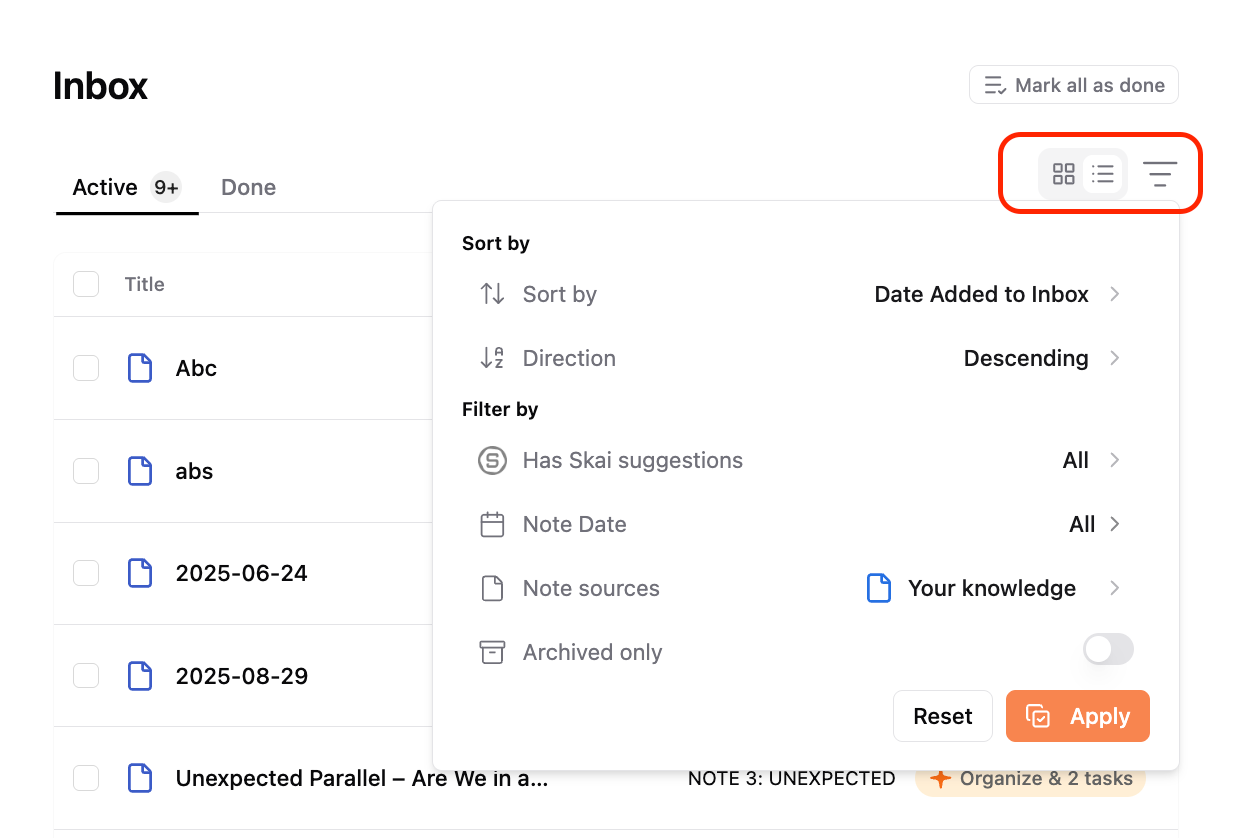
Available sorting options:
Date Added
When the item was first captured in the Inbox.Date Last Opened
The most recent time you viewed the item.Date Last Updated
When the item was last edited.Date Created
The original creation date of the item.
Sorting helps you decide whether to process the newest items first, revisit older ones, or focus on recently edited content.
Filtering Inbox Items
Filters help you narrow down the Inbox so you can focus on specific types of information.
Available filters:
Skai Suggestion
Show only items that have AI suggestions.Note Date
Filter items by when they were created or updated, such as:Today
Last 7 days
Last 30 days
Note Source
Show items based on where they came from, including:Notes
PDFs
Calendar events
Gmail
Outlook
Archived Only
Show only archived items.
Filters can be combined to surface exactly what you’re looking for quickly.
Changing Inbox View
You can switch how items are displayed in the Inbox using the icons in the top-right corner:
Grid View
Shows one item at a time for focused review.List View
Displays multiple items simultaneously in a list for faster bulk processing.
How to Process Many Items Quickly
If you need to clear or review a large number of items, use filters together with List View.
Example: Processing synced calendar events
Open Filter.
Set Note Source to Calendar.
Switch to List View.
Use the checkbox at the top of the list to select all items.
Click Apply & Done.
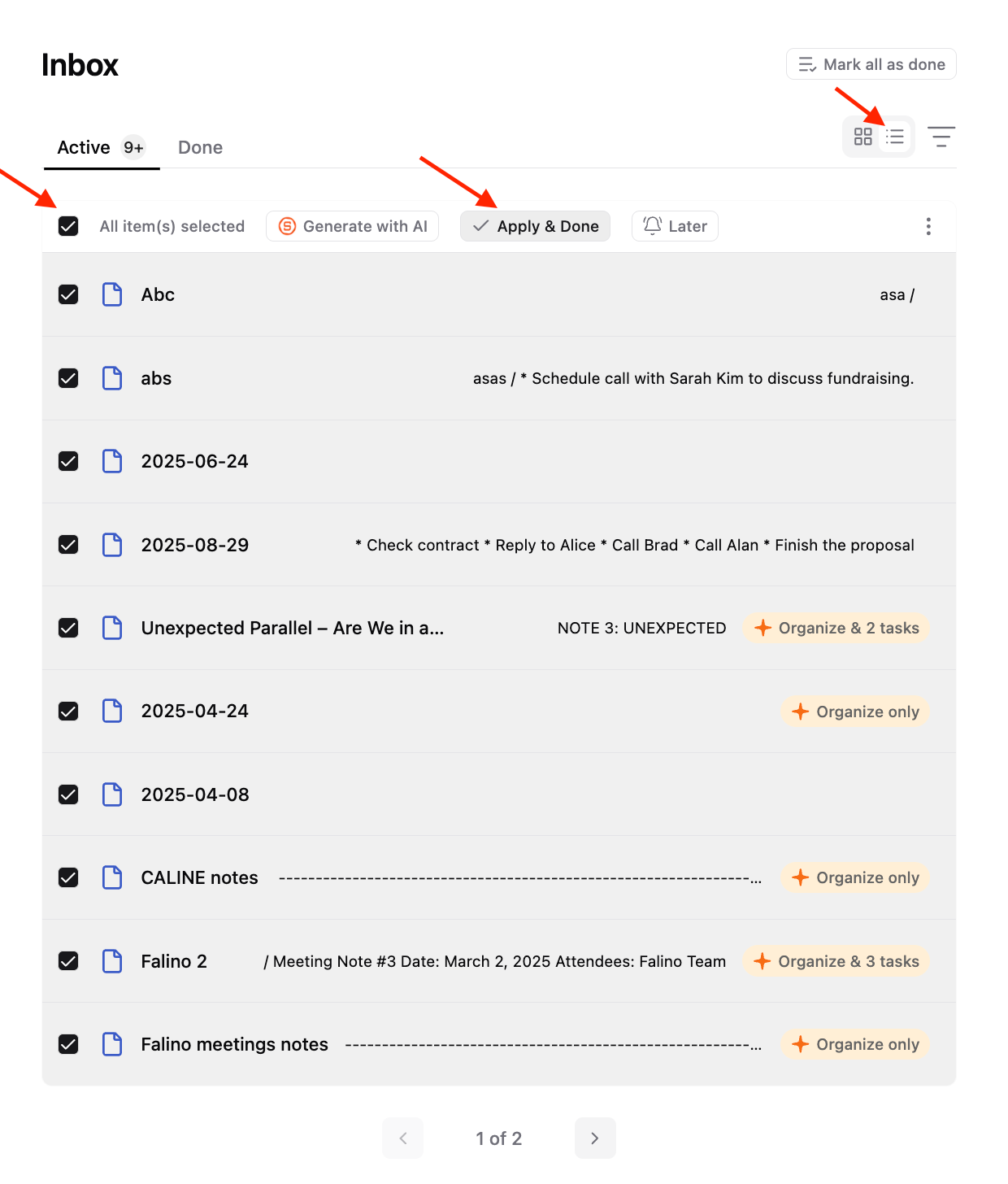
This same workflow works for managing large batches of emails, notes, or other imported content.
Tip: If you want to clear everything at once, click Mark all as done in the top-right corner of the Inbox.
Was this helpful?
Still need help? Share an idea