How to Start (P3)
Conversation + Knowledge
Written By Saner.AI
Last updated 9 months ago
7. Conversations and Knowledge
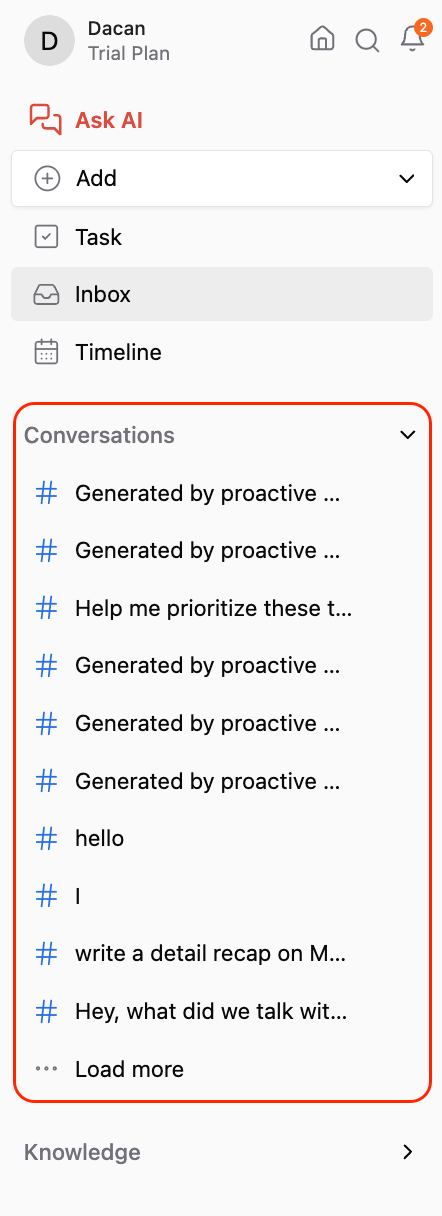
💬 Conversations
This section keeps a history of all your chats with Saner.AI
📚 Knowledge
This is where all your synced and created information lives:
Notes
Google Drive files
Gmail emails
And anything else you’ve connected
Everything is organized into folders and notes
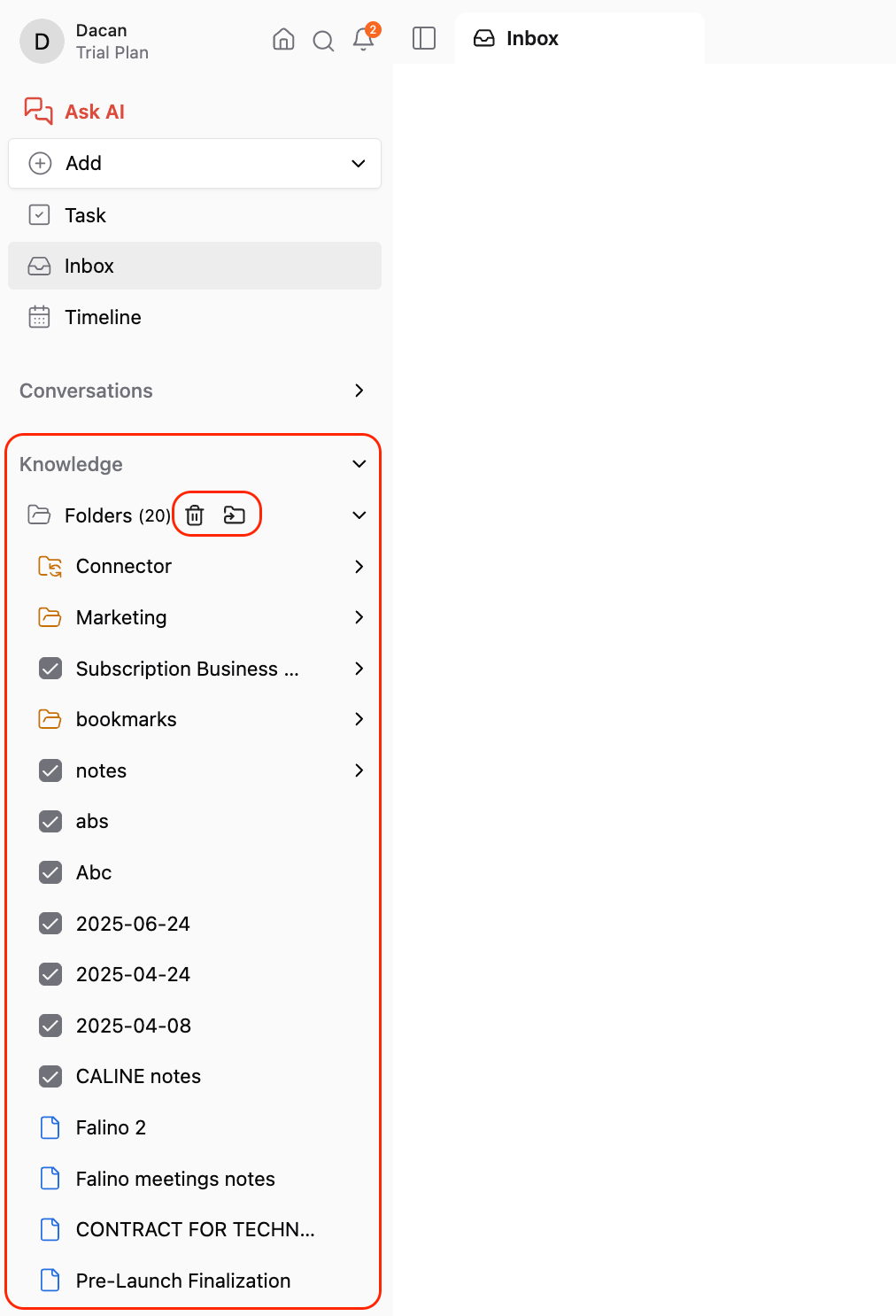
You can:
Create new folders and notes
Select multiple items at once
Organize or delete them easily
Hover over any note or folder, and when the checkbox appears on the left, click it. Then use the toolbar above to: Move items, or delete them
8. Edit Individual Notes with AI
To create a new note, just click the Add button and select Add a Note.
Next to the note name, you’ll see a small arrow button.
Clicking it opens a menu with options to:
Add tags
Change the folder
Add a summary
You can ask the AI to help with all of these. Just click the AI button next to each option, and it can:
Suggest relevant tags based on your content
Move the note to a more appropriate folder
Write a quick summary for you automatically
It saves time and helps you stay organized.
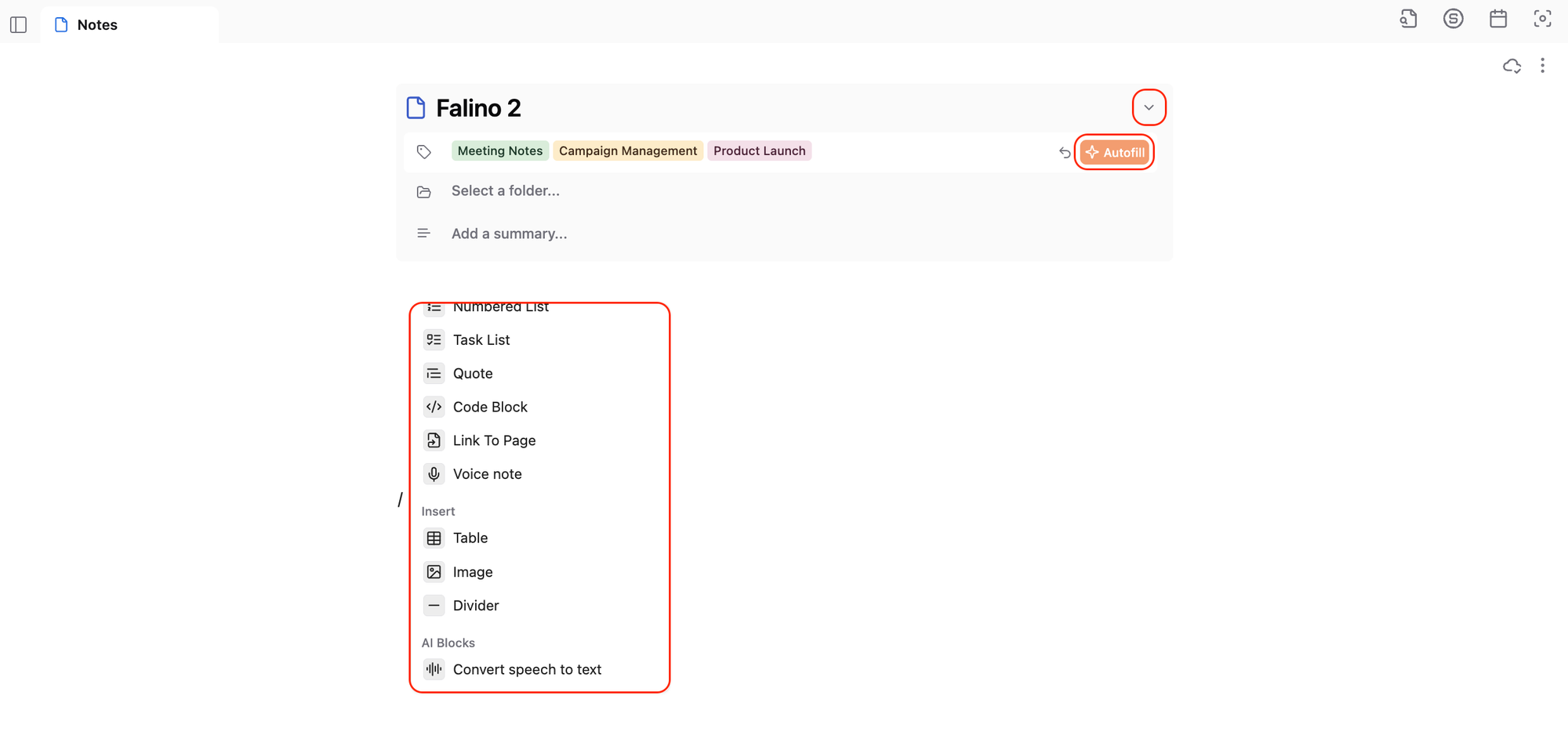
Inside the note, you have a flexible editor with many formatting options.
Just type / to open the command menu. From there, you can add:
Headings
Bullet lists
Numbered lists
Code blocks
Tables
Links to other pages
Images
Voice notes
And even convert your speech into text directly in the note
This makes it super easy to structure your ideas and mix formats however you like.
9. Adjust Your Settings
You can click the username (on the top left corner) to access:
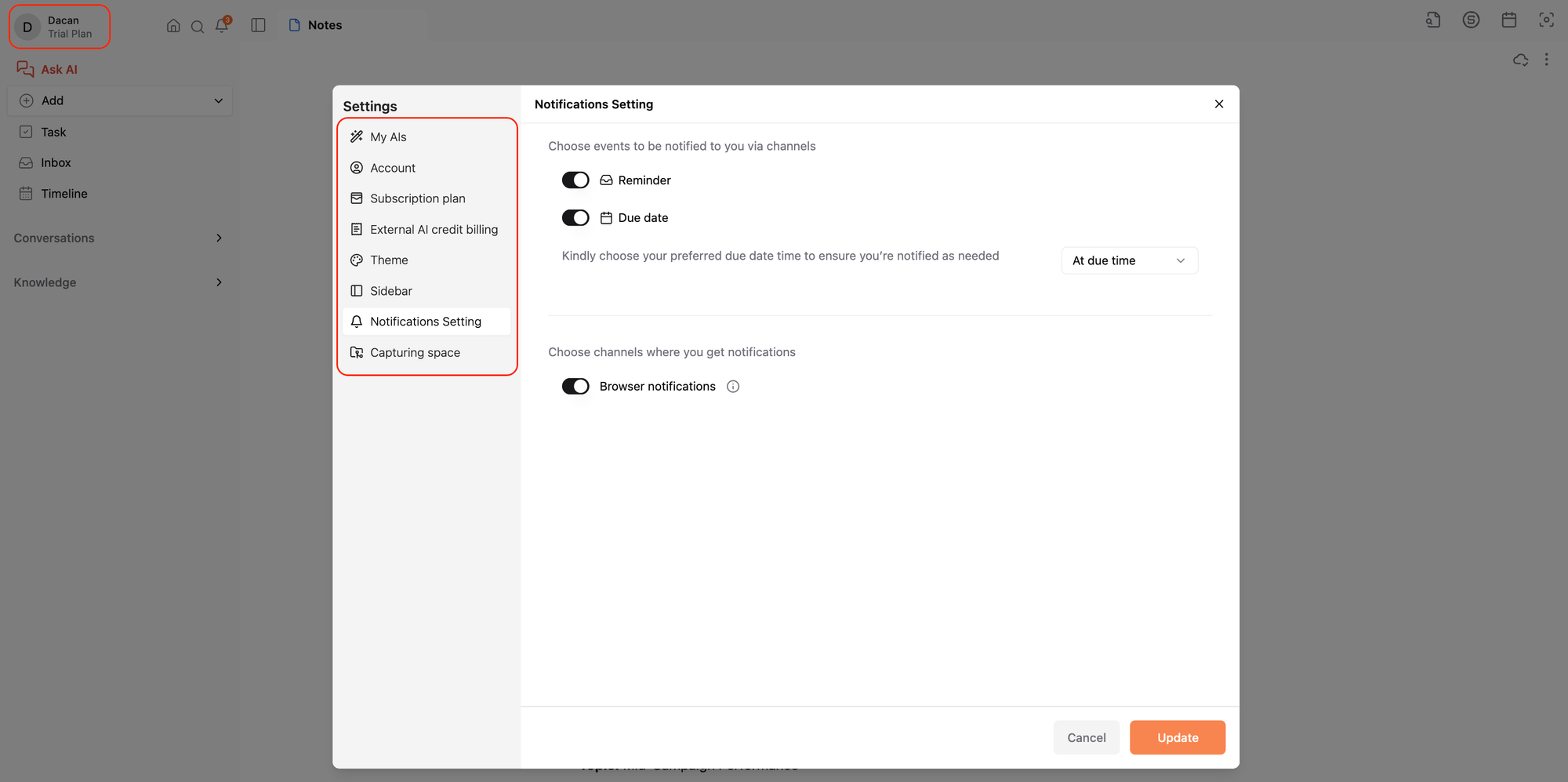
Account Settings: Update name, timezone, or erase data
Subscription & Credits: Manage your plan and AI model usage
Customize Sidebar: Reorder or hide sections
Appearance: Light or Dark Mode
Notifications: Enable reminders and AI nudges
Capturing Space: Set the default folder for new content
Feedback: Share bugs, ideas, or thoughts - we read everything
Personal walkthrough
If you’d like direct guidance, you can schedule a personal walkthrough with our team.
Email contact@saner.ai and we’ll help you get set up.
Best if you want tailored help or have specific questions about your workflow.
Was this helpful?
Still need help? Share an idea