How to Start (P2)
Tasks, Inbox and Timeline
Written By Saner.AI
Last updated 9 months ago
4. Manage Tasks
The Task Page is divided into three main parts:
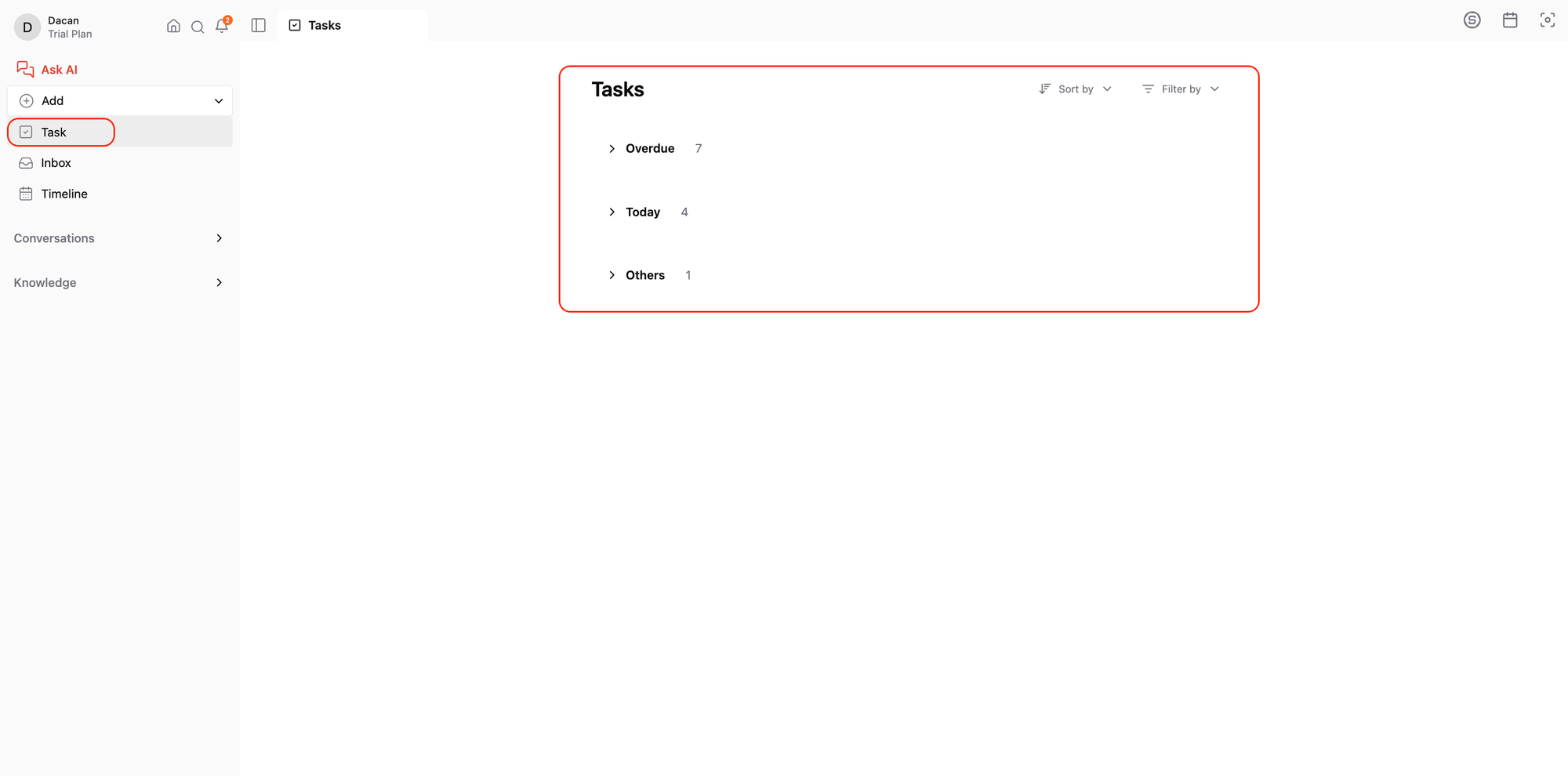
Overdue Tasks – These are tasks that have passed their due date.
Today’s Tasks – Tasks scheduled for today.
Other Tasks – This includes tasks without a set date or ones scheduled for the future.
You can manage these tasks with AI instead of doing everything manually.
For example, if you have a bunch of overdue tasks, just click Select, choose the ones you want, and then ask the AI to:
Prioritize them
Break them down
Reschedule them
Or even plan your day around them
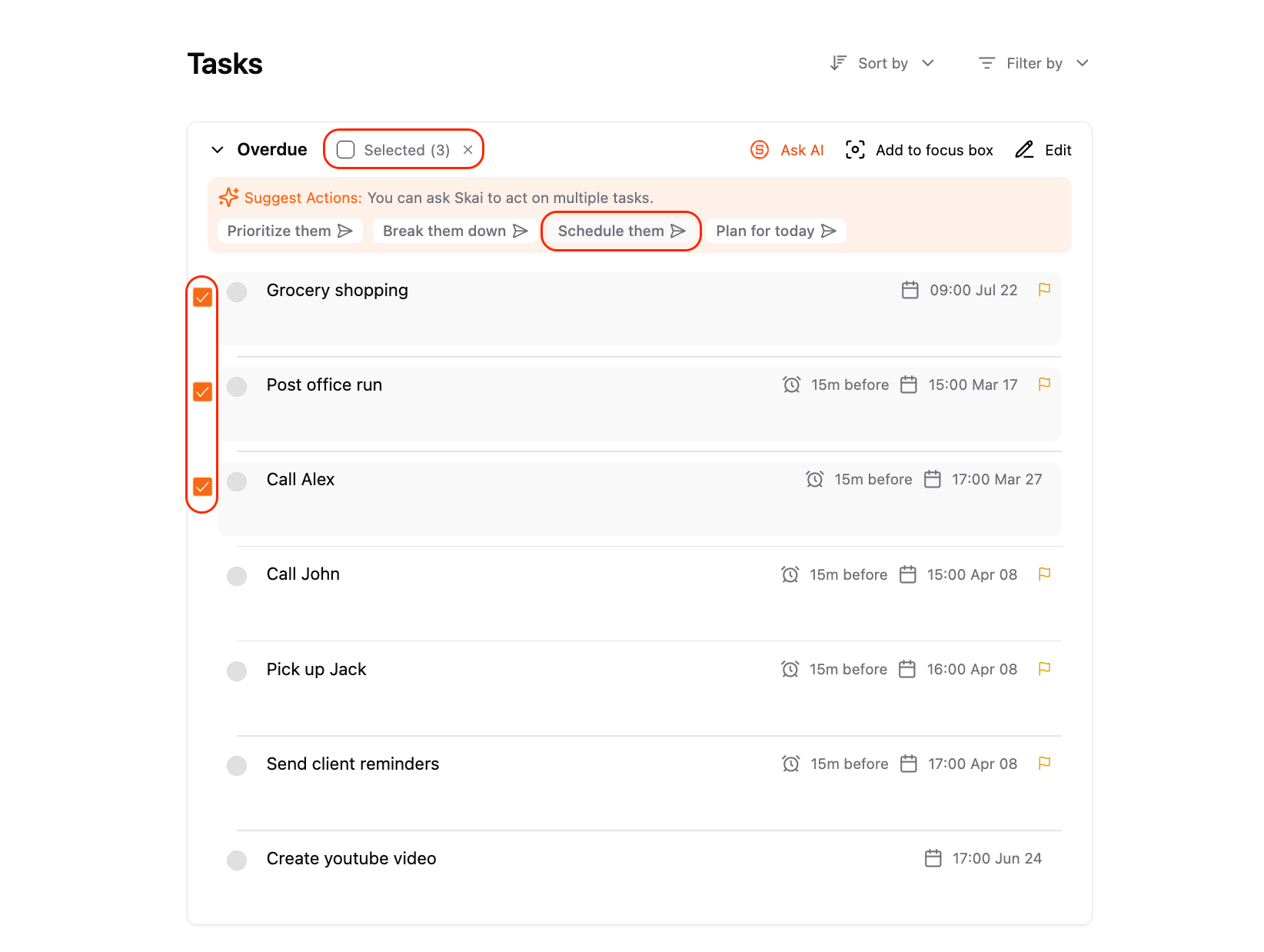
You can also chat with the AI to adjust it further
Tips: If there are tasks you really want to focus on, you can add them to the Focus Box I mentioned earlier.
5. Organize Incoming Info in the Inbox
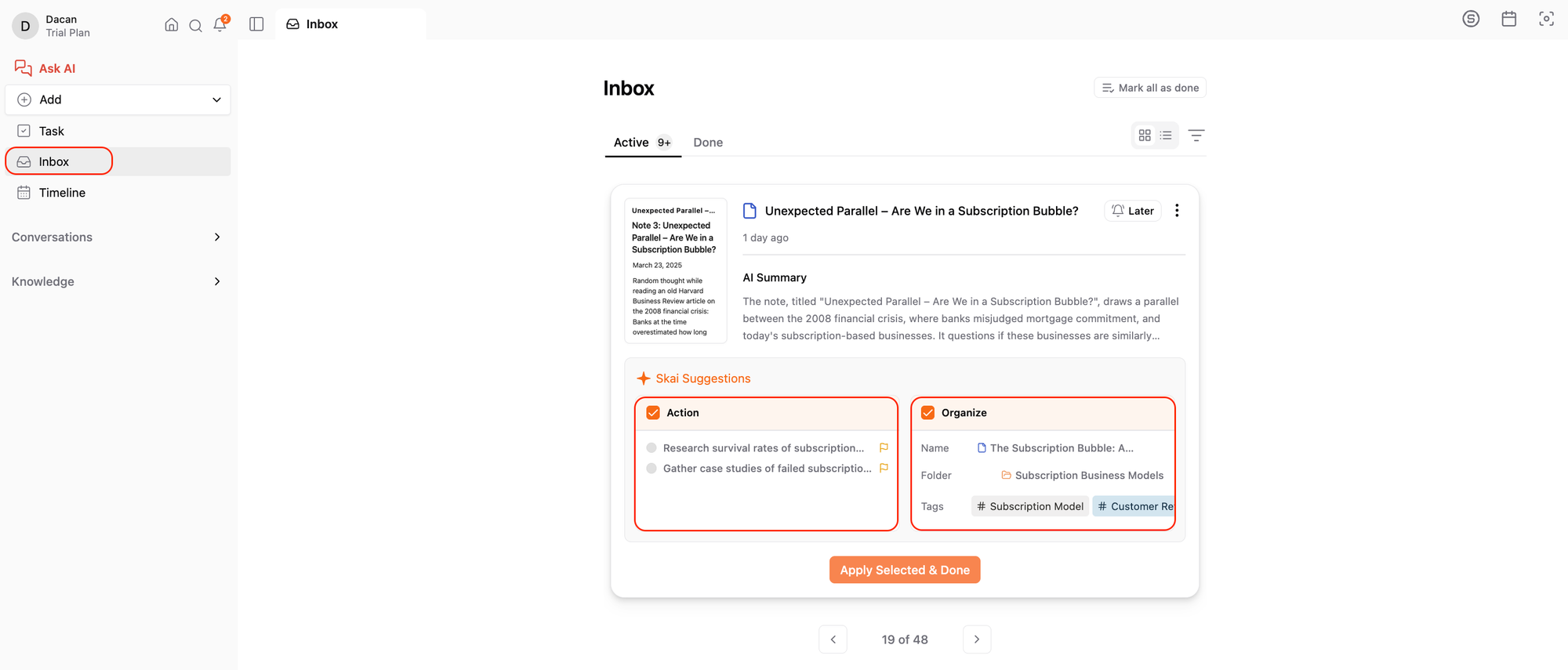
Inbox is the place where you manage your emails and notes. AI will scan your incoming information - like new notes or emails - and automatically suggest ways to organize them or take action.
The AI suggests: action and organization for the item
A folder to store it in
A name for the note
Relevant tags
If you like the suggestions, just click Apply Selected and you’re done.
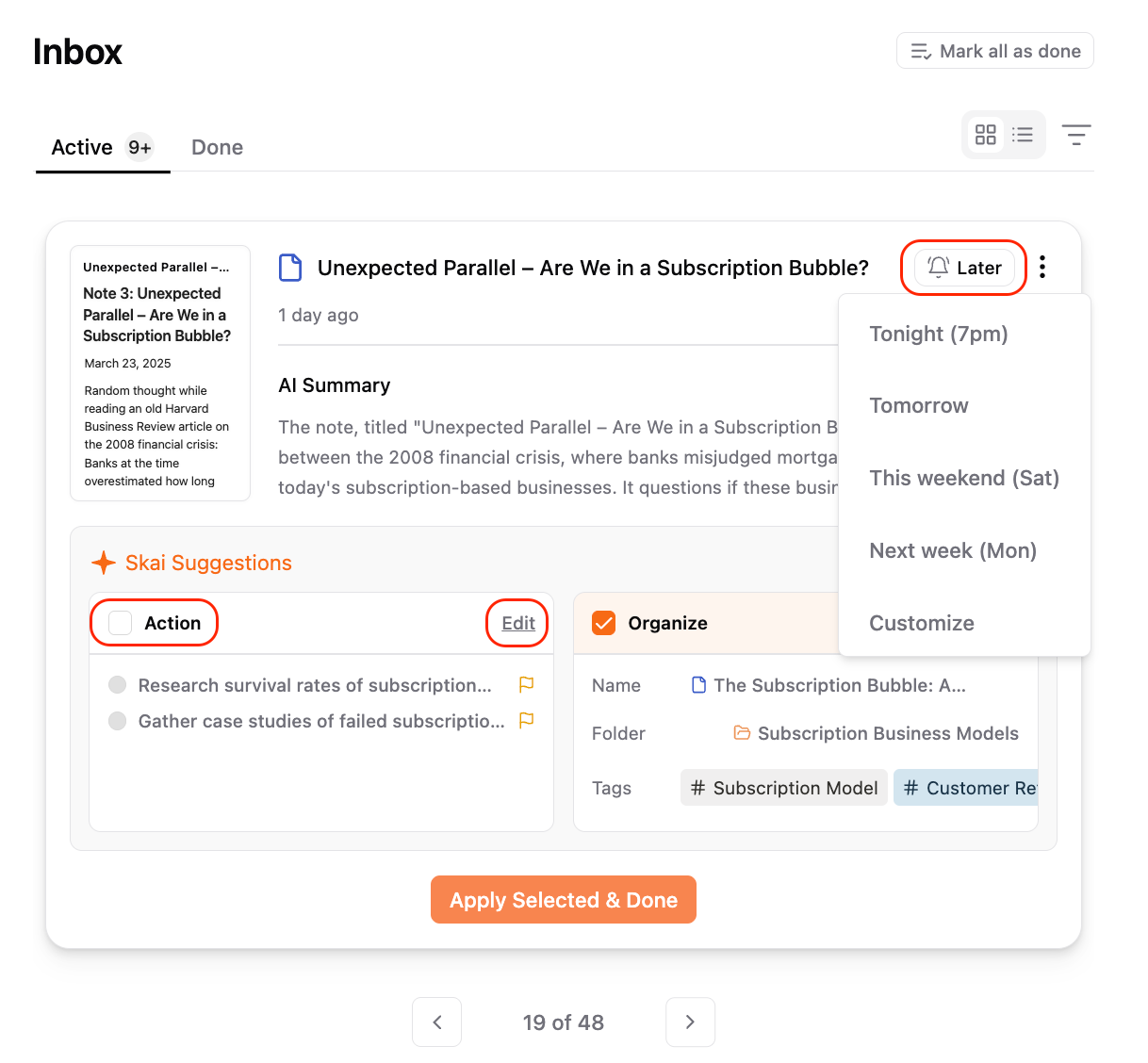
If not, you can uncheck any suggestions and hit Done to skip them.
If you are not ready to deal with it yet, click Later, set a time, and the item will reappear in your Inbox when you're ready.
So in short: the Inbox helps you quickly turn incoming info, especially emails, into organized tasks, so nothing important slips through the cracks.
6. Capture Thoughts in the Timeline
Next, we have the Timeline section.
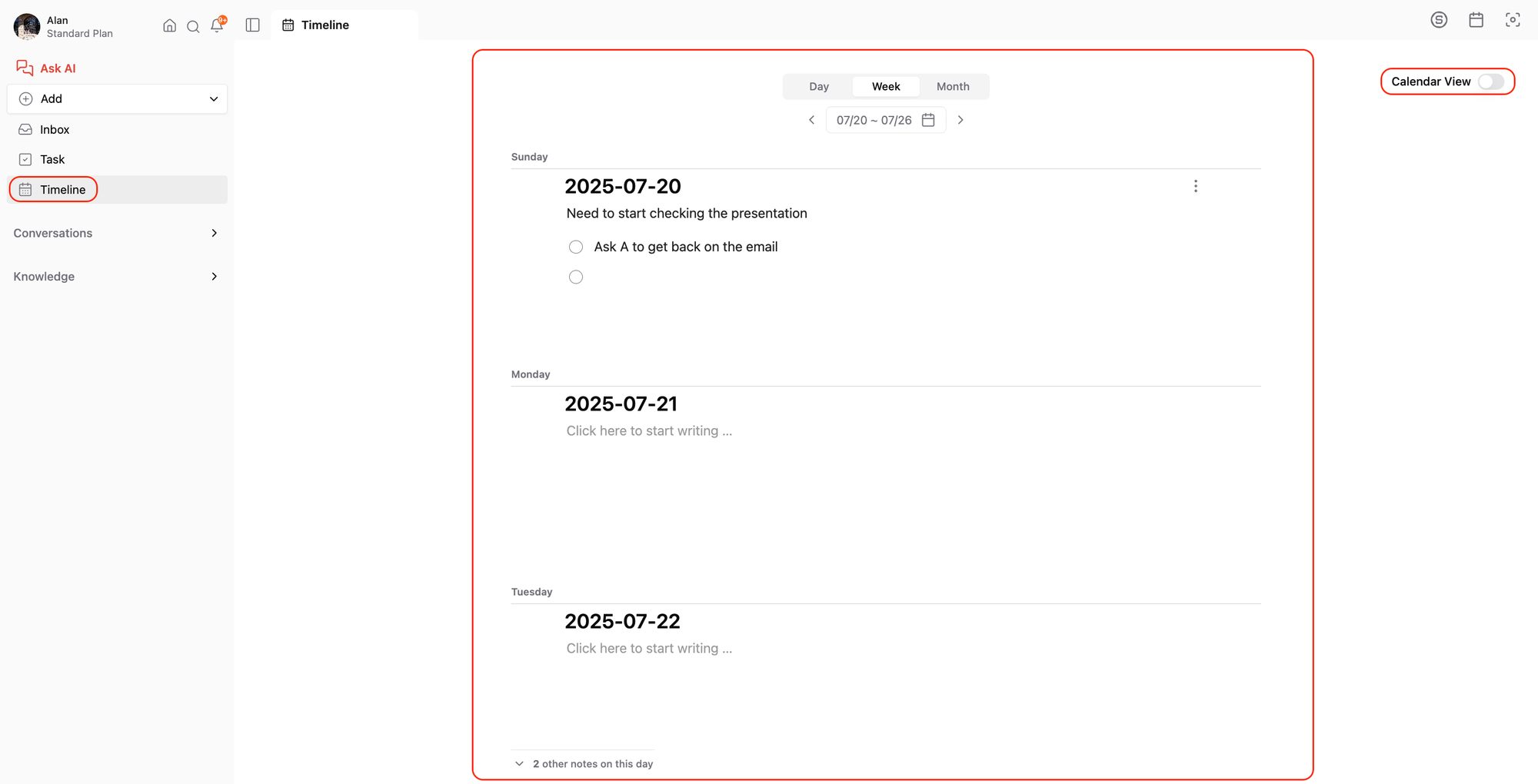
This is where you can jot down random thoughts or quick notes throughout the day. Saner automatically creates a daily note for you, so everything you write is organized by date without any extra effort.
You can view your timeline in:
Daily View – to see what you wrote each day
Weekly, Monthly View – for a high-level overview of your activity
We’re also working on adding a Calendar View - soon, you’ll be able to see your tasks and notes in a full calendar layout, similar to what you’re used to in Google Calendar.
Was this helpful?
Still need help? Share an idea