Import files
A guide on how to upload various file types like Text, Markdown, PDF, Word, HTML, Image, and Audio directly into Saner.AI.
Written By Saner.AI
Last updated 9 months ago
The Import feature lets you bring existing content from your computer directly into Saner.ai, so you can keep all your knowledge in one place.
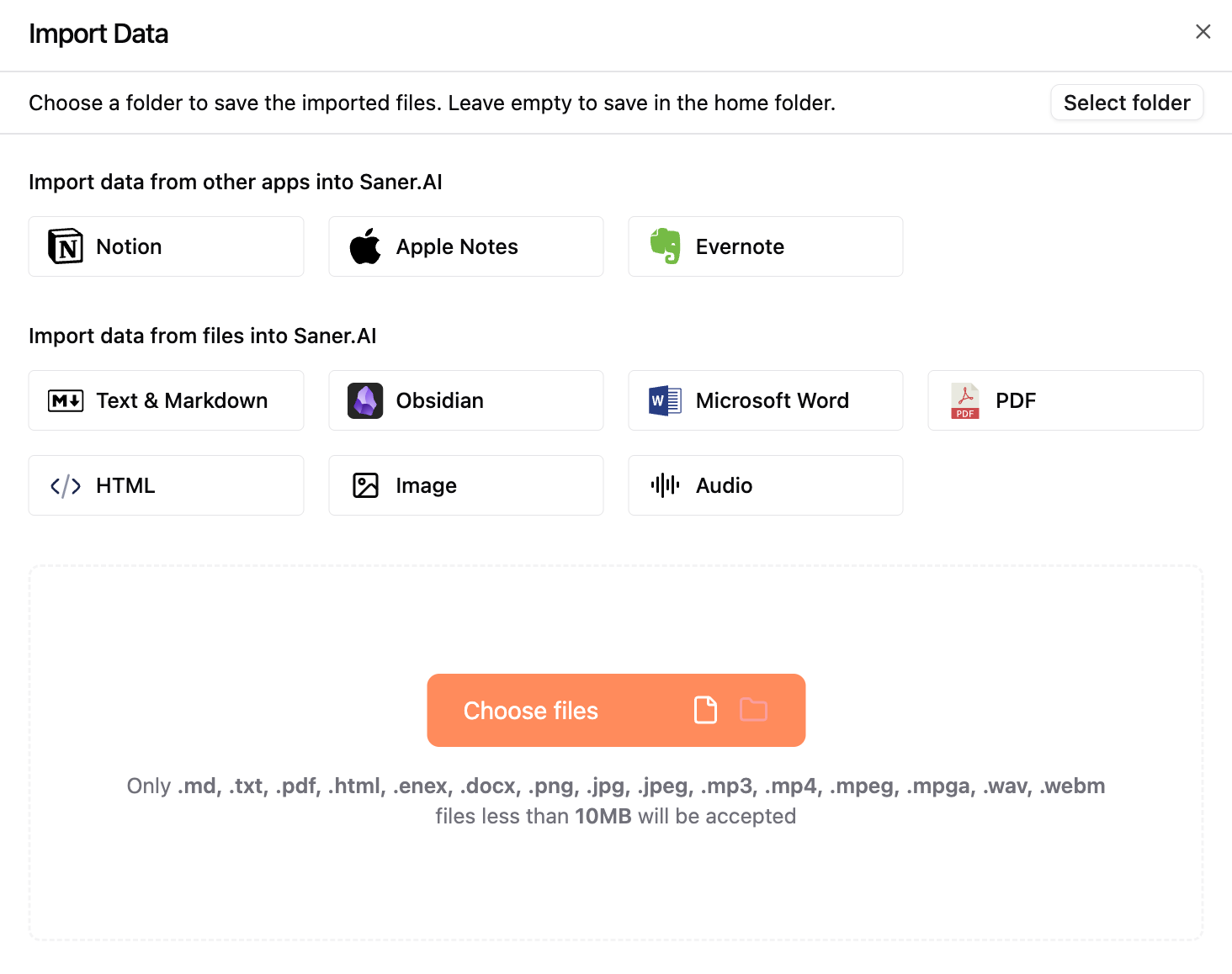
Saner.ai supports many common file types, including:
Text
Markdown
Obsidian
Microsoft Word
PDF
HTML
Images
Audio files
Step 1: Open the Import menu
In the left sidebar, click Add
Select Import
You can also open the Import screen directly using this link:
https://app.saner.ai/intent/import
Step 2: Choose how to upload your files
You can upload files in either of the following ways:
Option A: Select files manually
Choose a file type (for example: PDF or Word)
Click Choose files
Select files from your computer
Option B: Drag and drop
Drag your files directly into the upload area
Saner.ai will automatically detect the file type and apply the correct import method
Step 3: Choose where your content goes and import
(Optional) Click Select folder to choose where the imported content should be saved
If you skip this step, the files will be added to your default knowledge folder
Click Import to start the process
Once the import is complete:
You’ll see which items were successfully imported
Click any item to open it, or click Done to finish
Notes
Large or complex files may take a little longer to process
If an item fails to import, it will be clearly marked so you can retry or adjust the file
Was this helpful?
Still need help? Share an idea